Sunday, 14 April 2013

Windows 8: UEFI Secure Boot System for Linux


Windows 8: UEFI Secure Boot System for Linux

By  on October 12, 2012 - Tags:
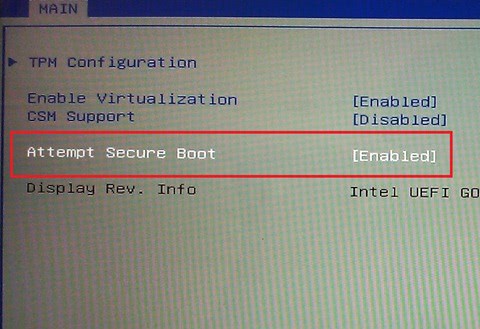
When Microsoft announced Secure Boot for Windows 8, it received lots of flak from the Linux community because of fears that secure boot would effectively shut out Linux distributions on PCs running the operating system. The biggest problem in regards to Secure Boot was that Microsoft gave OEMs the power the decide whether to include an off-switch for Secure Boot or not. Disabling Secure Boot in UEFI frees the PC from restrictions, so that operating systems that do not support Secure Boot can be installed and run on the PC.
The primary purpose of the protocol is to prevent the loading of unsigned drivers or operating system loaders. It needs to be mentioned that Secure Boot is only available on PCs that use UEFI, while PCs that use BIOS are not affected by this at all.
The Linux Foundation today announced that they have found a way to make Linux and other open source distributions work with Secure Boot.
In a nutshell, the Linux Foundation will obtain a Microsoft Key and sign a small pre-bootloader which will, in turn, chain load (without any form of signature check) a predesignated boot loader which will, in turn, boot Linux (or any other operating system).
The source code for the pre-bootloader is available in git://git.kernel.org/pub/scm/linux/kernel/git/jejb/efitools.git.
secure boot
The Linux Foundation notes that it may take a while to obtain a signature from Microsoft. Once it has been acquired, the pre-bootloader will be made available on the Linux Foundation website from where it can be downloaded freely.
The bootloader will run a "present user" test to protect the system against attacks targeting the boot process. It is not clear how this will work out, and if it will lead to certain access restrictions. The loader does not offer any security enhancements over booting Linux with UEFI Secure Boot turned off.
It is good news for PC users who want to run a dual or triple boot system on a PC with UEFI that includes Windows 8 and at least one Linux distribution or open source operating system.


The Cry Over the Loss of iGoogle and the Alternatives Available


The Cry Over the Loss of iGoogle and the Alternatives Available

By  on October 12, 2012 - TAGS: None
Back in July Google announced several services would be phased out, a process they carry out periodically.  Mostly these are web sites and functions that the vast majority of people are not using, hence the takedown.  However, one service listed caused an almost immediate cry heard round the world.  iGoogle, the popular home page site, will cease to exist in November of 2013.  While that's still some ways off, users are already scrambling to find alternatives and lobbying the Mountain View company to reconsider and save the website.
The howls of pain have not gone unnoticed by Google.  In fact, one employee, known simply as Jessica S., started a thread in the Google Web Search Help area to discuss alternatives for the disgruntled iGoogle users.
The suggestions on this thread posted by forum members are not endorsed by Google. It’s come to our attention that some folks have been wanting to discuss alternatives to iGoogle.  This is a thread exclusively for people to exchange ideas and experiences about the alternatives.  Know that any off-topic posts will deleted, so if you wish to discuss any other aspect of iGoogle, please search the forum for the most appropriate thread and make your post there. Thanks and have fun swapping ideas!
Almost immediately a link was posted to a site known as SaveiGoogle.org.  The site is not only designed to lobby the web giant to save the popular home page service, but also provides a lengthy list of alternatives in case the worst should come to pass.  The site is growing quickly and also turning into somewhat of a search engine news blog, but the primary focus remains on saving iGoogle and, to that end, they have even planned a "Save iGoogle" day for November 2nd.
save igoogle
The outcry over the loss of iGoogle seems somewhat surprising to many of us, given that we have long since moved on from the days of the home page, or web portal.  For those using Chrome, the browser doesn't even contain a home page button, although one can be added.  These days most users seem more interested in opening their browser to whatever site or tabs they left off on during their previous session.
For those looking for an alternative in case Google really follows through with their threat, there is no shortage of services available, although the number has diminished quite a bit over the years as these sites have fallen out of favor.  The Save iGoogle website gives a long list, but one of the best is probably Netvibes, which Ghacks previously has looked at.

E-Codes Free: Food Additives dictionary for Android


E-Codes Free: Food Additives dictionary for Android

By  on October 26, 2012 - Tags:
Have you ever asked yourself why food often contains food additives indicated by e-codes on the packaging? This may be especially helpful when you are in a foreign country where different food additives may be used by the food industry or when you are very careful about what food you buy and eat. It is nearly impossible to known all the e-codes unless you are a chemist or someone who really needs to be very careful about food, for instance because of allergies or illnesses.
While you could carry a small notebook or book with you at all times to look up each e-code that you find on each item that you want to buy, you could instead use an app like E-Codes for that purpose. The main benefits here are twofold. First, it is likely that you carry your phone with you anyway, so that you can get rid of the notepad or book easily. Second, the search may speed things up a lot. Instead of having to find the right page that lists information about an e-code, you can simply type in the code to get results instantly on the screen.
e-codes food additives
The free version of the application can be used manually only. Just type in the code that you want to look up and information about the food additive are displayed instantly on the screen. Besides the name, you also get information about risks attributed to the additive. The risks are color coded and sorted by severity from top to bottom. You also find additional information about the additive, for instance what type of food additive it is, whether it is banned in a specific country or under which circumstances you should avoid eating food that contains the ingredient.
You can alternatively search for names instead of a code if you want to find out more about a particular additive type or only have the name at hand. The program supports the three languages English, German and Polish right now and requires a restart when you change the program language. A commercial version is available which adds star ratings to each additive which may help you when you need to find information fast. Still, the free version should be sufficient for most cases.

Windows 8: difference between power down and reboot


Windows 8: difference between power down and reboot

By  on October 25, 2012 - Tags:
When you power down a PC running Windows 7, the operating system gets loaded fully again on the next start of the system. The same is true when you reboot the PC. On Windows 8, things are different which can lead to a problem that I have been facing lately. When you select to power down a machine running Windows 8, part of the operating system gets saved to the disk so that it can be loaded again on the next start. That's great most of the time as it speeds up the loading of the system, but not so great if you need the computer to load the full operating system in case you are running into an issue that requires the system to be fully loaded anew.
It is like visiting your favorite website again only to notice that the information have not been updated because it is being loaded from the browser cache instead of the web server it is hosted on.
The issue that I faced was the following: sometimes when booting into Windows 8 neither mouse nor keyboard worked immediately or after some seemingly random time of working with the system. I could not use the mouse or keyboard to reboot the PC, and the power button only powered the system down. The problem with that was that the issue did not go away since the system was not fully loaded on the next restart. There are likely other scenarios where this may be an issue.
My problem now was that I could not get the system to restart properly since I could not select the restart option when the operating system was loaded, and since Windows itself did not recognize the issue that I was facing. I also could not make use of the F8 option to display the boot menu to run system restore or other recovery options.
So how do you force the system to reboot when you can't do it when the operating system is loaded? I could not find an answer to that that works universally. I did however come up with two options that resolved the issue for me.
The first was the Mouse without Borders software that was running on the network the Windows 8 PC was connected to. While I was not able to see a mouse cursor,  I noticed that it must have been there somehow as menu items were highlighted when I started to move the mouse. I moved the mouse to the lower right corner of the screen to bring up the Charms Bar, select Power and then the reboot option.
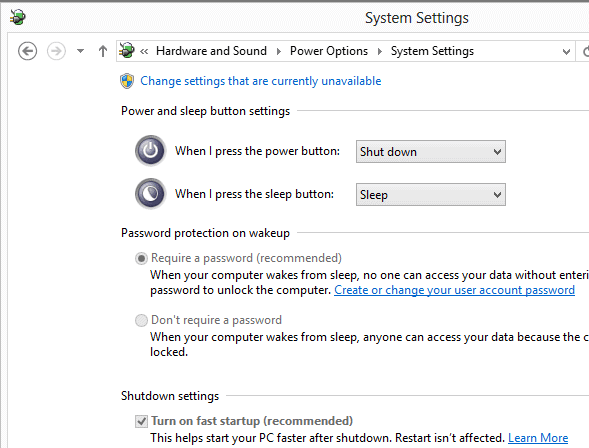
I also noticed that the reset button on the PC, if properly connected and configured, reboots the Windows 8 PC properly. You can alternatively configure Windows 8 to turn off fast startup. This is done in the Power Options control panel applet.
windows 8 fast start
The reset button works for me, but if your PC for whatever reason does not ship with one, I'd highly suggest to disable fast startup to avoid these issues. Sure, the system may start a few seconds slower when the feature is disabled, but that may be a small price to pay in the long run.
Enjoyed the article?: Then sign-up for our free newsletter or RSS feed to kick off your day with the latest technology news and tips, or share the article with your friends and contacts on Facebook, Twitter or Google+ using the icons below.

Sunday, 31 March 2013

Windows 8: upgrade from 32-bit to 64-bit system


Windows 8: upgrade from 32-bit to 64-bit system

By  on October 27, 2012 - Tags:, , 
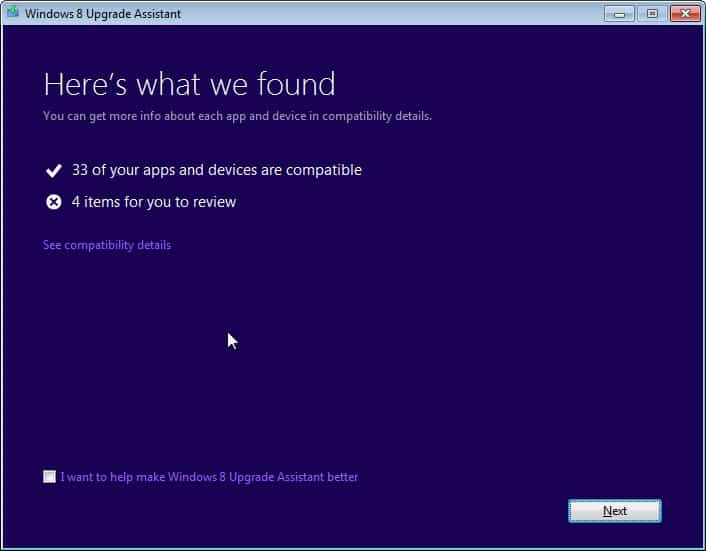
You need to be very careful when you want to upgrade from a 32-bit version of Windows to a 64-bit version of Windows 8. Microsoft, for whatever reason, decided to make things complicated. If you run the Upgrade Advisor to buy a copy of Windows 8 online, you will always get the version of Windows 8 that is corresponding to the currently installed version of the operating system. So, if you are running the Upgrade Assistant on a 32-bit version you will end up with a 32-bit Windows 8 version, while running it on a 64-bit version of Windows will result in a 64-bit version of Windows 8.
That's not a problem if you do not want to switch from 32-bit to 64-bit during the upgrade, but if you do, you will notice that you can't do that at all. If you are unlucky, you will notice once the system is up and running after the installation.
Can I upgrade a 32-bit version of Windows to a 64-bit version of Windows 8?
Yes, but you can't do this using Upgrade Assistant. If your PC has a 64-bit capable processor (CPU) but is currently running a 32-bit version of Windows, you can install a 64-bit version of Windows 8, but you'll need to buy Windows 8 as a DVD.
In short: you can't use the Upgrade Assistant to upgrade from a 32-bit version of Windows to a 64-bit version of Windows 8.
It won't work if you run the installation directly using the Upgrade Assistant, and it won't work if you select to burn the operating system to DVD or copy it on an USB Flash Drive instead.
windows 8 upgrade assistant
If you have the option, you can run the Upgrade Assistant on a 64-bit version of Windows and burn the contents to DVD or copy it on a flash drive. If you do not have the option available to you, you need to buy a 64-bit retail upgrade copy of Windows 8 instead or select the backup media add-on option during the purchase which also includes two discs. The retail copy includes two discs, one for 32-bit and one for 64-bit.
I'm not sure why Microsoft is making it that difficult for customers who try to upgrade from 32-bit to 64-bit during the upgrade. It certainly would not be a problem for the company to add an advanced configuration to the Upgrade Assistant that can be used to pick the version of Windows you want to upgrade to.
Microsoft notes that you can't keep any files, settings or software programs when you upgrade from 32-bit to 64-bit.

X-Ray 2.0 VirusTotal frontend with a batch of extra features


X-Ray 2.0 VirusTotal frontend with a batch of extra features

By  on October 28, 2012 - Tags:, , 
If you are in the business of downloading and testing lots of different applications, you better make sure that the programs that you run on your PC are clean and not infected with some nasty malware. If you have the resources, you could build a PC only for testing and nothing else, but if you are on your own, you probably have to find a different solution that is not as expensive or time consuming. Sandboxing comes to mind as one of the most effective options. Still, you need to scan the program if you write about it as it may provide you with information that you need to communicate to your readers who may not all run sandboxing software or up to date antivirus software that protects their data from malware.
The main service that I use to test a file for traces of malware is VirusTotal which scans the file using more than 40 different antivirus engines from respected companies such as Avast, AVG, Symantec, Dr. Web or Microsoft.
The service is great for single-file verifications, but not so great if you have a number of files that you want to check. That's were programs like the official VirusTotal Uploader or Raymond's X-Raycome into play.
X-Ray 2.0 has just been released by Raymond. The program is a frontend for VirusTotal that offers additional features on top of the functionality that VirusTotal provides. It has three core features:
  • Get a files most recent VirusTotal report if available. This submits the file hash only to VirusTotal to see if it is in the database. If it is, it will retrieve the latest scan report and display it in the X-Ray interface.
  • Send files to VirusTotal. This submits all files that you have selected to VirusTotal for a scan.
  • Send suspicious files to antivirus companies for analysis. You can use the program to submit a suspicious file, for instance one where VirusTotal returned malware hits, to antivirus companies as a sample. Software authors can use the program to quickly submit their files to companies that detected false positives for instance.
x-ray 2.0 virustotal
The new version features several improvements, most prominently full support for VirusTotal's API 2.0, support for automatic captach recognition services, proxy support, and a right-click send to option to use the program from within Windows Explorer.
The software could use some form of automation. When you drag and drop multiple files into the interface or use the add suspicious files button to do so, you will notice that the files won't get submitted automatically. You need to click on the get report or send to buttons for each file individually to get reports. It would be handy if you could click a button only once, or configure the program to use a default action automatically when files are added, to improve the usability.
It also appears that you need to click on the get report button after you have submitted a file that is unknown to VirusTotal to get the report. The analysis is not automatically displayed in the program window.
X-Ray 2.0 regardless of that is a well designed program that aids you in the verification of files using VirusTotal's online scanning service. Software authors in addition can use it to submit their programs for testing to various antivirus companies. The application is compatible with all recent 32-bit and 64-bit editions of the Microsoft Windows operating system.

The program displays a number of options on start which may be confusing at first. There is for instance a right click editor and a simple right click editor, and it is not really clear what the difference is between the two tools. Here is a quick rundown of all tools and the functionality they make available: Right Click Tweaker - This tool enables you to add new commands to the Windows Explorer context menu. From opening an administrative command prompt over printing a file list, taking ownership or copying the selected contents to the clipboard. My Computer Manager - Enables you to add files or folders to the My Computer context menu. Right Click Shortcuts Creator - You can use this tool to add file or folder shortcuts to the right-click context menu in Windows Explorer. All shortcuts are placed into the root folder automatically. Right Click Cascading Menu Creator - Does the same as the Right Click Shortcuts Creator, only that you place the file or folder shortcuts into subfolders which may improve visibility if you plan to add several shortcuts to the menu. Right Click Editor - Displays all existing file types and their associated actions. You can add, remove or edit actions here Right Click Editor IE - You can edit Internet Explorer's context menu here. Send To Manager - Add or remove devices, folders or services in the Send To folder. New Menu Editor - Add or remove files that you can create when you select the New option in Windows Explorer. Simple Right Click Editor - Displays context menu commands and their actions. You can use it to remove actions from the menu. Right Click Enhancer offers an incredible set of features for Windows users who want to manage Windows Explorer context menu entries. From removing entries that are not used to optimize the context menu to adding shortcuts to often used programs or commands, it is all there and not difficult to use. Enjoyed the article?


Manage Context Menu items with Right Click Enhancer

By  on October 29, 2012 - Tags:, 
If you install lots of software on your system you may have noticed that the Windows Explorer right-click context menu has grown considerable in size ever since you started to install software on your computer. Many applications add their own items to the context menu which help you run specific features faster. You can for instance send a selected file directly to your virus scanner for testing, or load selected media files with your favorite media player.
It quickly becomes a problem once items are added that you do not use at all. The result is a cluttered context menu that is displaying too many items and slowing you down as a consequence.
Right Click Enhancer is a free portable software program for the Windows operating system that makes available a set of tools to tame the context menu. The program not only lets you remove items with ease, it also enables you to add useful items or program shortcuts to the context menu.

Right Click Enhancer

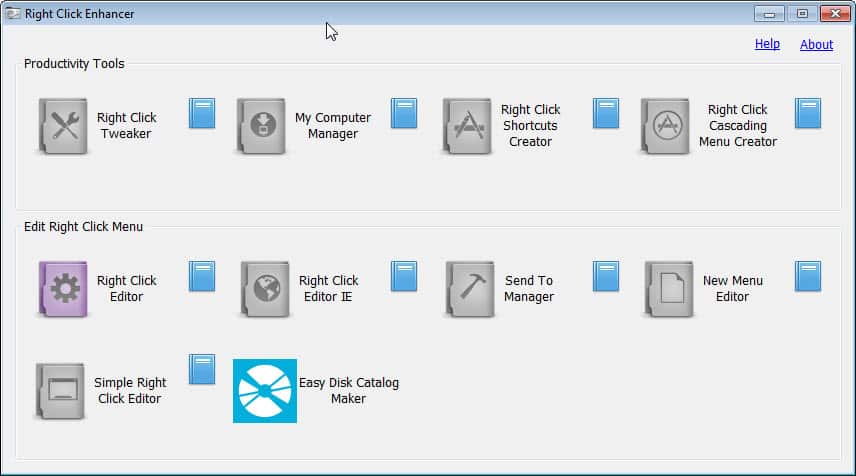
right click enhancerThe program displays a number of options on start which may be confusing at first. There is for instance a right click editor and a simple right click editor, and it is not really clear what the difference is between the two tools. Here is a quick rundown of all tools and the functionality they make available:
  • Right Click Tweaker - This tool enables you to add new commands to the Windows Explorer context menu. From opening an administrative command prompt over printing a file list, taking ownership or copying the selected contents to the clipboard.
  • My Computer Manager - Enables you to add files or folders to the My Computer context menu.
  • Right Click Shortcuts Creator - You can use this tool to add file or folder shortcuts to the right-click context menu in Windows Explorer. All shortcuts are placed into the root folder automatically.
  • Right Click Cascading Menu Creator -  Does the same as the Right Click Shortcuts Creator, only that you place the file or folder shortcuts into subfolders which may improve visibility if you plan to add several shortcuts to the menu.
  • Right Click Editor - Displays all existing file types and their associated actions. You can add, remove or edit actions here
  • Right Click Editor IE - You can edit Internet Explorer's context menu here.
  • Send To Manager -  Add or remove devices, folders or services in the Send To folder.
  • New Menu Editor - Add or remove files that you can create when you select the New option in Windows Explorer.
  • Simple Right Click Editor - Displays context menu commands and their actions. You can use it to remove actions from the menu.
Right Click Enhancer offers an incredible set of features for Windows users who want to manage Windows Explorer context menu entries. From removing entries that are not used to optimize the context menu to adding shortcuts to often used programs or commands, it is all there and not difficult to use.
Enjoyed the article?