Sunday, 27 January 2013

Syncbox makes your local data available on the Internet


Syncbox makes your local data available on the Internet

By  on August 24, 2012 - Tags:
If you do not trust cloud hosting services, or want to make available large amounts of data, you are usually better of using a service that lets you host your own cloud space on the Internet. We have already  reviewed the custom cloud hosting service ownCloud that you can use to set up your own storage space on the Internet.
Syncbox uses a different approach. Instead of having to install the service on a server on the Internet, you install it on your Windows system. It then makes available the data on the Internet using some magic and a dynamic IP service so that it can be accessed from remote locations provided the computer the server is running on is connected to the Internet.
All you need to do is install the Windows server on the computer with the data that you want to make available, and clients on the other systems that you want to access the data from. Supported are clients for Windows, Mac OS X and Ubuntu on the desktop side, and Android or iOS on the mobile side of things.
If everything is set up correctly, you simply enter the account ID and password on the client side to connect to the local PC and access the data that you have made available there. You find all the instructions you need to get started on the guide page over at the official site.
syncbox
Syncbox supports media streaming, sharing, work collaboration and version control on top of basic file management features. The effectiveness depends largely on the upload speed of the server and I’d suggest it to be in the Megabit range to provide you with a good experience.
Upload bandwidth may not be the only that is keeping you from using the service. It first needs to be noted that you are dependent on the IP to domain name service that it provides to you. If for any reason that fails, or if the company decides to shut down the service, you are left with a product that may not work anymore at all, or only in a limited context.
Second of all, it appears to be a Chinese service. While that may not be cause for concern, I’d definitely want to know that before setting up the service, especially if you are making available work related files. (via Caschy)
There are better solutions for work environments and users who want to make available sensitive data on the Internet.

Install Microsoft Visual C++ Runtimes in one go


Install Microsoft Visual C++ Runtimes in one go

By  on August 24, 2012 - Tags:
Sometimes when yo try to install or run a program on your Windows system you may get an error message that a component it depends on is missing. This can for instance be the case if you do not have a particular version of the Microsoft .Net Framework or a Visual C++ Runtime installed. Some software developers include the runtimes and frameworks their programs depend on with the installation file, while others do not.
If the latter is the case you are left with the task of hunting down the correct version of the runtime or framework on your own. The error message may reveal additional information about the component that is missing giving you an edge when it comes to finding it online.
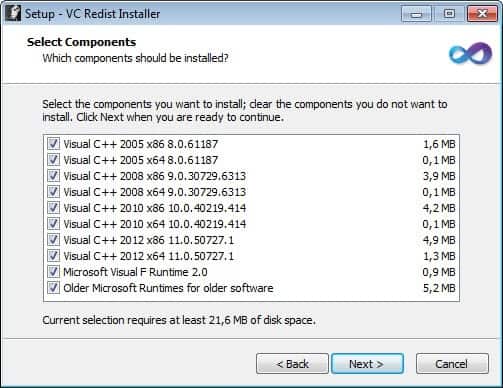
The basic idea behind the VC Redist Installer is to provide you with all important Visual C++ runtimes in a single installer.
vc redist installer
The program includes the following components:
  • Visual C++ 2005 x86
  • Visual C++ 2005 x64
  • Visual C++ 2008 x86 9.0.30729.6313
  • Visual C++ 2008 x64 9.0.30729.6313
  • Visual C++ 2010 x86 10.0.40219.414
  • Visual C++ 2010 x64 10.0.40219.414
  • Visual C++ 2012 x86 11.0.50727.1
  • Visual C++ 2012 x64 11.0.50727.1
  • Microsoft Visual F Runtime 2.0
  • Older Microsoft Runtimes for older software
The program is regularly updated with the latest versions of the runtimes. Please note that you need to launch the installer with administrative privileges on your system. When you do, you are presented with a list of all included components. Here you can then decided to install all components on the system or use the checkboxes to only install the components that you are looking for. The VC Redist Installer ships with all components included so that it is perfectly suited for offline installations.
You can alternatively run the program with the /VERYSILENT switch for a silent installation of all components that it includes. The program does not check for updates automatically, which means that you need to check the author’s homepage from time to time to see if there is an update for the program available.

Want to run 64-bit Internet Explorer on Windows 8′s desktop? Here is how


Want to run 64-bit Internet Explorer on Windows 8′s desktop? Here is how

By  on August 24, 2012 - Tags:
If you are running a 64-bit version of Windows 8 you have got access to 32-bit and 64-bit versions of Internet Explorer 10 on the system. The 64-bit version of Internet Explorer 10 is automatically started on the Modern user interface part of the operating system. On the desktop that is different as it is not run in a full 64-bit version.
The main reason behind the decision is compatibility with plugins. It is not an issue for the Modern UI version of the browser as it is not supporting plugins. You will notice however that both the Modern UI version and the traditional desktop version of Internet Explorer 10 ship with Adobe Flash built natively into the browser.
The guys over at Neowin contacted Microsoft to find out if there is a way to run the 64-bit version of Internet Explorer 10 on the desktop. According to their information, it is possible but requires a configuration change in the Internet Options.
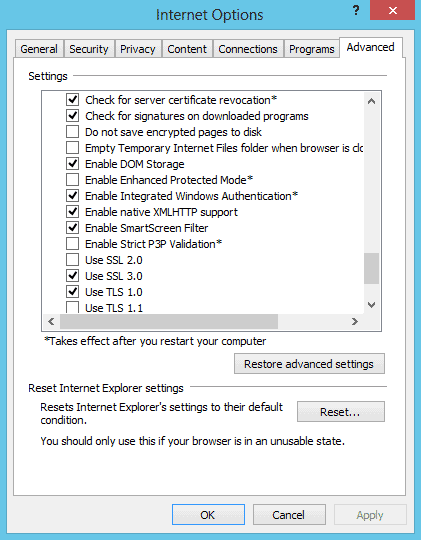
On 64-bit Windows 8, the browser frame process (both “modern UI” and Desktop) runs 64-bit. However, for compatibility with plug-ins, IE 10 on the desktop runs 32-bit tabs by default. If the user turns on “Enhanced Protected Mode” in Internet Options, Advanced; they will have 64-bit tabs by default for IE 10 on the Desktop.
Here is how you turn on Enhanced Protected Mode in Internet Explorer 10:
  • Open the desktop version of Internet Explorer and click on the settings icon on the top right of the browser window just below the close button and select Internet Options from the menu
  • You can alternative press Windows, enter Internet Options, switch to Settings on the right to select the configuration menu this way
  • Switch to Advanced in the Internet Options
  • Scroll down until you find the entry enable Enhanced Protected Mode*
  • Check the preference, click ok and restart your computer afterwards
protected mode
Once you have restarted your computer you can run the 64-bit version of the browser on the desktop. Keep in mind that it may break some plugins that you have installed in the web browser.

Friday, 25 January 2013

DiskCheckup: get warnings before a hard disk drive fails


DiskCheckup: get warnings before a hard disk drive fails

By  on August 17, 2012 - Tags:
A failing hard disk drive can have severe consequences for the data that is stored on the drive. In the worst case, you end up with an unusable hard drive and data loss that even the best recovery programs can’t restore.  While backup software can prevent data loss from happening in the first place, you may also appreciate warnings before a hard disk drive connected to your computer fails.
One of the programs that you can use for the job is DiskCheckup, a free for personal use disk monitoring software for the Windows operating system.
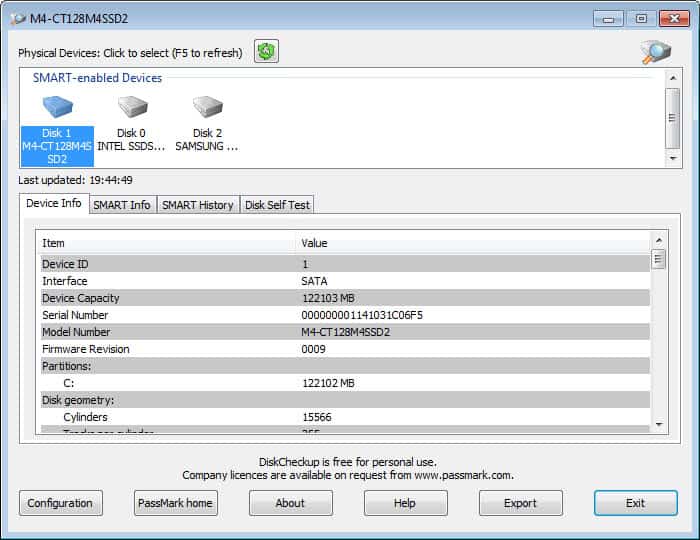
hard drive monitoring
The program displays all hard disk drives in its interface on startup. The lower half of the screen gets populated with information once you select one of the drives at the top. Information are sorted into the following four tabs:
  • Device Info lists the capacity, interface, model number, firmware and other device related information including the drive’s standards compliance.
  • SMART Info displays information about the health of a drive. Here you find information about the current and worst temperature, or error rates, and status information for each value that informs you if the drive is still running within limits.
  • SMART History is deactivated by default. You first need to activate the feature in the program settings. Please note that the data file can grow significantly in size. It is therefor suggested to only activate this feature temporarily.
  • Disk Self Test offers to run a short or extended test and displays the status of that test afterwards.
You need to enable the warning system with a click on the configuration button. Here you can define a temperature warning level, and configure whether you’d like to see a message window or receive an email when values exceed the threshold.
You need at least one hard drive with SMART functionality to use the program, and need to know that drives connected via SCSI or hardware RAID are not supported.

Improve your text reading speed with Speed Reader Enhanced


Improve your text reading speed with Speed Reader Enhanced

By  on August 20, 2012 - Tags:
Remember those movies where a genius is reading each page of a book in a few seconds? While average readers probably never get that far when they start to improve the speed in which they read text, it is certainly possible to learn how to read faster without sacrificing the meaning of the text. So called speed reading programs aid you in improving your text reading speed by gradually increasing the words per minute count in practice sessions.
Speed Reader Enhanced is a free program for the Windows operating system that is available as a portable version or installer. When you first start the program you see a settings page where you configure the program’s features. It is here that you select the words per minute and word interval as well as the text that you want to read or use for practice. The author of the application recommends that you start with a words per minute count that you feel comfortable with before you increase the count gradually over time. Depending on your reading experience, the word count of 300 per minute may be too fast to start with.
speed reader enhancer
I’d suggest you try it out and reduce the words per minute count if it is too fast for your. The settings page lets you change the background color and text color as well as the font the text is displayed in as well. You can furthermore change the minimum number of characters displayed to you per interval, whether you’d like the program to combine small words, and if you want the program to make small pauses after periods and commas.
You can use the default text for the configuration phase, or load a pdf document or text file from the local computer system instead. A click on Show Reader opens the interface in full screen, and a tap on any key but the ESC key starts the speed reading exercise. You can hit ESC at any time to switch to windowed mode, pause with any key, and go back to the settings page with another tap on the escape key. The program saves the position whenever you pause, so that you can continue at the same position when you start again.
improve text reading speed
You find a speed reading course pdf document in the program folder that explains some of the concepts and ideas behind speed reading. If you have never come into contact with the concept before, it is probably a good way to start.
All in all a great program for Windows users who want to improve their text reading speed.

Put.io: downloads torrents for you, lets you stream or download afterwards


Put.io: downloads torrents for you, lets you stream or download afterwards

By  on August 19, 2012 - Tags:
If you can’t run a Bittorrent application on your local computer system, either because you are not allowed to install any software on it, or maybe because your Internet Service Provider is limiting bandwidth for P2P file transfers which would make the downloading less enjoyable and slow, you may be interested in an online service that does the downloading for you.
Put.io offers to download torrent files using their servers. All you need to do is supply the service with the torrents you are interested in, wait until the files have been downloaded, to either download the files to your computer or stream media files directly.
A free account is good for 1 Gigabyte of storage space and unlimited bandwidth. If you need more, you can upgrade to pro or premium accounts that increase your storage to 50 or 100 Gigabytes for $9.90 or $19.90 per month respectively. You can refer other users to the service to get an additional 350 Megabytes of storage space up to 3 Gigabytes in total. The system works similar to Dropbox, and you can invite by email, social media or with direct links.
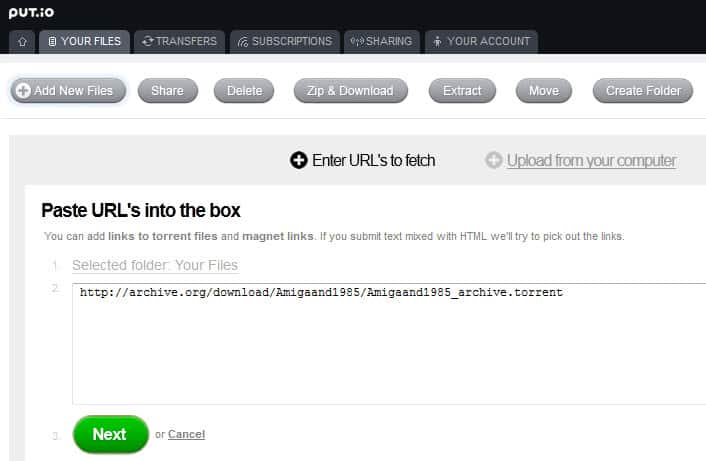
The whole process of adding and download or streaming files is surprisingly easy. To start, you click on add new files on your user home page, and either paste torrent file links directly into a form on the page, or upload torrents from your computer instead.
download torrents online
The service checks the torrent file and its storage requirements on the next page and gives you either the green light to start the transfer, or the red light if downloading the files would exceed your storage space. What’s missing is an option to select individual files that you want to download from a torrent. This is especially true for archive.org torrents which often come with multiple versions of the same file.
Put.io checks if the torrent has already been downloaded by another user of its service, and if that is the case, makes the file available to you directly after a few seconds. If the file has not been downloaded yet, you are redirected to the transfers page where you will see connection and progress information.
Once the service has downloaded files for you, you can access them from the your files menu. Options available here include zipping and downloading files to the local computer, extracting zipped files, sharing files with friends, or deleting files. When you click on a media file, you are automatically taken to a streaming video page so that you can watch the video online without downloading.
stream torrents online
Options to stream using a local player and to download the file are present here as well. The subtitle search feature is a nice addition as well.
The operators of the site and dedicated users have created tools that improve the service’s accessibility. You find plugins and apps for XBMC, Plex and Boxee here, as well as Chrome extensions, options to map the storage to a local drive letter or instructions on how to use the mobile version of the platform for use with smartphones and other mobile devices.
Another interesting feature is that the service supports RSS subscriptions. All new torrents that get released will be automatically updated once you have added a subscription to your account, provided you have enough free storage space available for that.
Put.io works pretty well and has a lot to offer. Especially the easy to use interface, the third party tools and the option to stream media right from your account need to be mentioned in this regard.

Thursday, 24 January 2013

Opera crashing or freezing? May be out-of-process plugins


Opera crashing or freezing? May be out-of-process plugins

By  on August 16, 2012 - Tags:
Opera Software introduced out of process plugins in Opera 12.00 to increase the browser’s overall stability when plugins were used to display contents on web pages. The basic idea behind out of process plugins is to move plugins in their own process so that they do not affect the web browser itself when they crash, freeze or cause other issues.
If you have been experiencing stability issues like crashes or freezes in Opera 12.0x recently you may want to try and disable out of process plugins to see if it resolves the issue when using the browser. A recent Opera Desktop Team blog post reveals that Opera Software noticed an increase in Opera freezing on pages with plug-in content on the Windows platform.
The out of process plugins feature seems the culprit, and Opera recommends to disable the feature in the browser for the time being until a proper fix is released in one of the future versions of the web browser. The issue is only affecting Windows versions of the web browser, with Mac and Linux users not experiencing the issues in their versions.
Whenever you open a web page with plugin contents, you will notice the opera_plugin_wrapper.exe process pop up on your system. It is this process the plugins are running in.
opera out-of-process plugins
There does not seem to be a way to disable out-of-process plugins in the web browser directly. I could not find a setting to do so in the regular options nor under opera:config.
The only available fix as of now is a new Opera 12.02 snapshot build in which the developers have disabled the out of process plugins feature. Please note that this is only true for the 32-bit version under Windows. The reason why the feature is not deactivated in 64-bit versions of Opera is that these versions require the feature to run 32-bit plugins.
So, if you run a 32-bit Windows version of Opera and experience crashes or freezes, you may want to download and install the snapshot build to see if it resolves the issue. Keep in mind that it is a development build and not necessarily suitable for productive environments.
You can alternatively try and enable on-demand plug-ins in Opera. Click on Opera > Settings > Preferences to open the configuration window. Switch to Advanced > Content and check the enable plug-ins only on demand option there.  This may block some plugin content on websites, advertisement for instance, which in turn may reduce the chance of Opera freezing or crashing because of the issue.