Saturday, 19 October 2013

Official Facebook application for Windows 8.1 launches

Good news for users of the Windows 8.1 operating system: Facebook just launched its official application for the system so that users of it can now use the official app instead of any of the unofficial ones that were available in store before.
The app is available on all systems that are already running the Windows 8.1 RTM that is officially released tomorrow to the public.
Tip: If you just search for Facebook in store, you will find too many results which makes it really difficult to find the official application. The easiest way to find it is to filter by newest app and to limit the category of apps displayed to social.
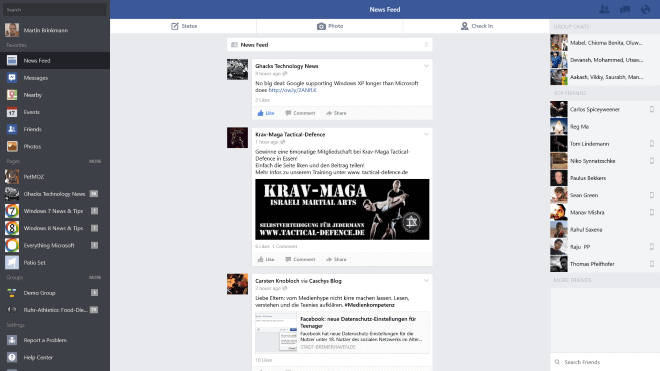
The application itself looks very similar to Facebook's Internet site, but you will notice a couple of differences. The most obvious ones are that the menu on the left is displayed in full at all times, that the search is displayed on top of it and not in the center, and that the right sidebar does not list sponsored ads but a list of group chats and top friends instead

Facebook application
facebook
You find status, photo and check-in tabs at the top for easy access to the functionality, and you will notice that many of the buttons have increased in size to improve the usability of the app on touch devices.
The main question that may come to your mind is this: why would anyone want to use a Facebook app if they can open the Facebook website instead?
The app is optimized for touch, which is a plus as the Facebook website is not. There are other benefits. The app can run in the background and notify you about updates, while you cannot do the same if you have Facebook open in your favorite browser. While you can keep the browser window up at all times, it is not the same as running it in the background.
As far as power consumption goes, the native app may also be more beneficial to your system's battery life, but that needs to be tested in benchmarks first.
You can also share photos posted on Facebook using the Share charm, for instance to attach them to an email that you are about to write. The Share to Facebook does not seem to work right now, or may not have been implemented yet.

Verdict

If you are a regular on Facebook and run Windows 8.1 on a touch device, then you will benefit from the installation of the official Facebook app.
It may be worth a try even if you are not using touch devices, as it provides you with other benefits that you do not get when you run the website version of Facebook.
Windows 8.1 is finally getting a good share of apps for popular services, something that the operating system was missing ever since it launched a year ago

The search for the image format of the future continues

Images are an essential part of nearly every Internet website and service. We have seen progress in other areas of interest in regards to web formats. There is a lot going on when it comes to video formats for example, with new formats promising better quality, lower file sizes and better performance.
When it comes to image formats, the web is still relying on formats that were introduced in the beginning days of the Internet. The popular jpeg image format was introduced back in 1992 while the png image format made its debut in 1996.
These standard formats are supported by all modern web browsers and most websites use them when it comes to displaying images on their sites.
Recently, companies have started to look at successor formats that in regards to jpg, that offer better compression and at the very least an equal image quality.
Google's WebP format is one of those candidates. It is already tested in the wild on Google properties mainly, where the format is served to Chrome users exclusively (if you connect with a different browser, say Firefox, you get png or jpg images instead).
While it is clear that Google will push the company's own WebP format as best as it can, other browser developing organizations and companies are not as quick to adopt. One of the main reason here is that WebP is no the only format that promises better compression ratios.
image format future
Mozilla conducted a study recently that analyzed the compression quality of four different image formats: JPEG XR, WebP, HEVC-MSP, and the standard JPEG format to establish a baseline.  The study itself only looked at the lossy image compression efficiency of said formats, and not at other metrics and data that matters. In particular, it did not include feature sets, performance during run-rime, licensing or time to market in the study.
According to the study, HEVC-MSP performed best in most tests, and in the tests that it was not best, it came in second to the original JPEG format.
Mozilla, which rejected to include the WebP format previously in the Firefox web browser, is still considering adding support for it to the browser, especially since popular third party websites such as Facebook have started to make use of it.
One should not read too much into the study. It is a limited test that looks only at the compression quality and not at other metrics that may be of equal importance.
The quest for the image format of the future continues

Feedly gets 3 new Pro and 3 new Free features

The RSS reading service Feedly has become a popular services in the wake of the Google Reader shutdown. Quite a number of factors attributed to the success of the service: the willingness to listen to the user base, web and application support, an API, and a monetization strategy that generates revenue required to support the service and further development.
While you may not agree with all decisions made, for instance the lack of full article search options or the delivery delay of smaller sites, it is seen by many as one of the best web-based RSS reading services out there.
The company behind the service has announced new features that it has integrated into the service. Three of the features are reserved to Feedly Pro users, while the remaining three new features are available to regular (free) users as well.

Feedly Features

All users benefit from the following three new features that are enabled for all user account levels on the Feedly website.
1. Popular section
feedly popular
What is popular
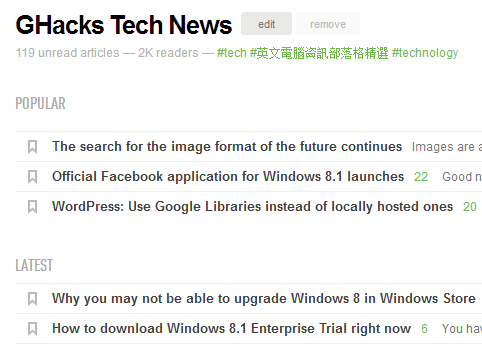
A new popular section is displayed on top of each feed listing popular items based on Feedly community engagement. The new feature is displayed regardless of display style and updated automatically by the service. At the moment, three popular articles are displayed in the section.
Note that these articles are not displayed under latest for the time being.
2. Different Home Views
home views
Feedly Home page
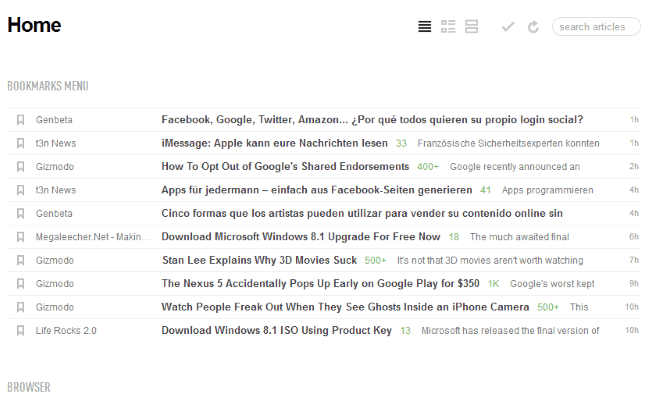
It is now possible to change the home view -- the listing of all subscribed RSS feeds -- to a different view style. If you prefer titles only or cards view, you can change that here now.
3. Improved feed search
The feed search engine has been completely redesigned promising better and more accurate search results no matter if you are searching by title or topic.
It is interesting to note that you may get multiple listings for a single website or service. If you search for ghacks for instance, you get more than ten listings and different subscriber levels.
4. Speed Boost (Pro)
Feeds are refreshed about 30% faster for Pro users according to Feedly thanks to optimizations of the polling speed. Smaller feeds, those with fewer followers, may be updated up to four times faster as well.
5. Custom Sharing (Pro)
The new custom sharing feature enables you to add a custom send to url to your account. You can configure this feature under Preferences > Sharing > Custom Sharing.
The feature uses variables, e.g. $(url) or $(title) that you need to add to the web address of the sharing service that you want to use. A recent blog post on the Feedly blog provides you with examples.
6. Pro Roadmap (Pro)
Pro members can suggest new - pro - features and vote on which features they want the most so that development is prioritized based on those votes.

Thursday, 17 October 2013

Shortcut Keys for Google Search Tools

Shortcut Keys for Google Search Tools

The search tools that Google makes available on search results pages can be quite useful to filter results by time or other factors. While that is great, for instance to limit the results to posts made in the past week or day, it is also not really comfortable to use as you need to click three times before you can make any modifications to those filters.
A click on search tools displays the any time and all results options underneath the main menu bar. You need to click on the selection here, and then again on the filter that you want to make use of.
The Firefox extension Shortcut Keys for Google Search introduces keyboard shortcuts for all time-based options that Google lists under Search Tools. Instead of having to click through, you simply use the shortcut to activate the filter right away.
Here is the list of shortcuts and filters it makes available:
Time Filter
  • Alt-A: set the filter to display results from any time.
  • Alt-H: only display results published in the last hour.
  • Alt-D: display results of the past day.
  • Alt-E: display results of the past week.
  • Alt-M: only display results of the past month.
  • Alt-3 or Alt-6: display results of the past 3 or 6 month period.
  • Alt-Y: past year
  • Alt-C: set a custom range.
The add-on introduces shortcuts that enable you to navigate on the search results page.
Navigation
  • Alt-J or Alt-K: select the next or previous result.
  • Alt-N or Alt-P: go to the next or previous page in the results.
  • Enter: open the selected result in the current tab.
  • Alt-T or Alt-W: open the selected result in a new tab or new window.
There is also a set of "other" shortcuts that you may find useful.
Other
  • Alt-U: display results in your language.
  • Alt-I: display all results.
  • Alt-I: translate foreign pages.
  • Alt-S: toggle the Search tools menu.
  • Alt-F: toggle the time filtering menu.
  • Alt-L: display a help window with all shortcuts.
What I personally like most is the option to quickly set a time filter without having to click through the menu to do so. Just hit one of the available shortcuts and the results page gets reloaded automatically. It can be quite useful if you are using Google Search Tools regularly.

SuperCard Flashcards: flashcard creation and learning app for Android


SuperCard Flashcards: flashcard creation and learning app for Android


Flashcards are useful when it comes to learning language vocabulary and other things that you need to memorize more than you need to understand them. It is a very popular technique and works well when you need to memorize something.
Non-electronic flashcards have the advantage that you memorize while you are filling them out, while electronic flashcard systems may not provide you with that advantage.
SuperCard Flashcards is an application for Android that provides you with the means to create flashcards on your device, and to run different types of quizzes to memorize the information.
You do not necessarily have to create the cards by yourself though, as you can also import Flashcard Exchange and Quizlet card sets. Another automated option is the creation of flashcards from an image folder on your SD card, or from text files that are stored on it.
supercards flashcards
The program ships with three sample sets that you can use to explore the program's functionality.  It displays all available card packs on start, and you can either select one right here with a tap, or swipe to the right to browse them individually one by one.
You can then browse all cards included in a set, for instance to start memorizing the contents displayed on them, or run a quiz to test how well you know the subject at hand.
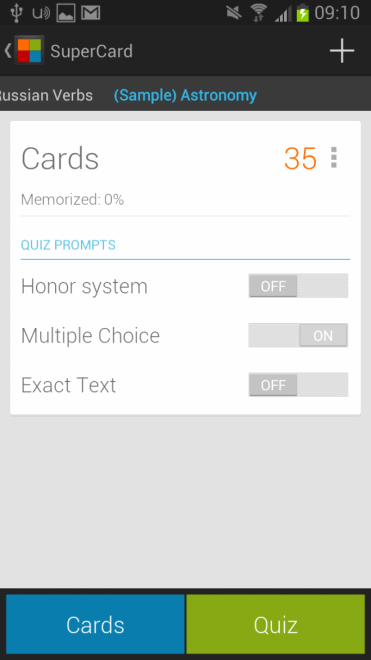
Two different types of quizzes are supported. You can either use the honor system, which mimics how you learn when you are using physical flashcards. You see the contents of the flashcard and need to decide what the answer is. Once you got it, press the button to have the correct answer shown to you.  You then need to tell the app if this was your answer or not, so that it can keep track of success and failure.
The second is a multiple choice quiz where four answers are displayed to you at all times of which you need to select one.
It is furthermore possible to mix the two quiz forms.
The app supports normal and endless quiz modes. Normal shows all cards of a pack in random order to you once while endless prioritizes cards that you have a hard time getting right to help you memorize their contents better.
Last but not least, you can swap answers and questions in the quiz.
As far as adding flashcards goes, you can add text flashcards manually as well by creating a new set on the main screen. You need to select cards then and click on the plus icon in the interface to add new cards to the set.
Verdict
SuperCards Flashcards offers many features that you expect from electronic flash card apps. You can import card sets, create your own, and memorize the contents in quizzes. If you are looking for a flashcard app, this is one you should definitely try out.

Microsoft Malware Prevention troubleshooter checks your PC’s preparedness

Is your PC properly configured to protect your files, data and information from malware and other malicious attacks? Experienced users may be able to answer that question without having to think much about it, while inexperienced users may have the nagging feeling that their PC may not be as well protected as it could or should be.
Microsoft's Malware Prevention troubleshooter serves two purposes. First, it analyzes important security related settings and features letting you know in the end if there is something that you can improve security-wise. Second, it offers to resolve several of the issues that it finds right away.
The program belongs to the Fix-It category of applications that Microsoft creates for a variety of troubleshooting related purposes. These tools can be run right after you have downloaded them to your PC.
Note: The tool requires an Internet connection when you run it as it is downloading components from Microsoft before it performs the scan. Yes, this is done every time you run the application.
microsoft malware prevention
You can select to have the application apply fixes for issues that it finds automatically, or not. I strongly suggest you select the "let me select the fixes to apply" option on the selection screen as you do not have any control whatsoever otherwise.
The scan should not take too long and results are displayed to you afterwards. If you have selected the manual option, you are free to check or uncheck identified issues so that you can decide what you want repaired or resolved, and what not.
What the program scans for
  • Is antivirus software installed and running on the system.
  • Is Windows Update configured to automatically install updates.
  • Is the Windows Firewall enabled or a comparable program.
  • Is the pop-up blocker enabled (Internet Explorer).
  • Is Remote Registry turned on or off.
  • Check if the latest Internet Explorer version is installed on the system. Will also modify privacy settings for improved privacy if necessary, and delete Internet cache and browsing history.
  • Enable User Account Control (UAC) if disabled.
  • Reset proxy settings.
Checking the findings of the program manually is important, as you may end up otherwise with modifications that torpedo changes that you have made to the system. If you require a custom proxy server to connect to the Internet, or Remote Registry, then you'd better make sure you select manual and uncheck the findings before you continue with a click on the next button.
The antivirus software that Microsoft suggests is the company's own Microsoft Security Essentials tool. While that is certainly better than no protection at all, it is not the best tool in this regard as it is not a complete solution to protect your system from malicious software.
The Fix It appears to be compatible with all versions of Windows from Windows XP onwards to Windows 7 but not Windows 8 right now. You can download the latest version of the program from Microsoft.


Wednesday, 16 October 2013

StartIsBack+ adds taskbar to Start Screen on Windows 8.1

StartIsBack+ adds taskbar to Start Screen on Windows 8.1

More than a dozen different start menu programs have been created which all add a start menu back to Microsoft's newest operating system Windows 8 and Windows 8.1. Depending on which program you install, you may have access to other features that improve the usability of the operating system.
The release of StartIsBack+ today introduces one of the coolest features yet: the display of the Windows taskbar on the Start Screen.
StartIsBack+ has been designed for Windows 8.1 exclusively, which means that you cannot use it on Windows 8. That's not that much of a problem though, considering that all Windows 8 users will be able to upgrade to Windows 8.1 for free in October 2013.
Once you have installed StartIsBack+ on Windows 8.1, you are greeted with a screen that informs you about some of the features that it introduces.
Note: The program is not free. You can try it for 30-days without restrictions. It reverts to a basic mode afterwards that is not that useful. You can buy a personal license for two computer systems for $3, which is a reasonable price, or a 5 PC license for $5.
Existing StartIsBack users do not need to buy a new license. It will work on StartIsBack for Windows 8 and StartIsBack+ for Windows 8.1.

StartIsBack+ for Windows 8.1

startisback+ windows taskbar start screen
The taskbar is just one of the features that the program adds to Windows 8.1, but it is definitely one of the better ones, as you can access taskbar programs right away from the operating system's start screen.
windows 8.1 start menu
The program ships with four different start menu designs that you can choose from. Plain8 is the default selection, but you can also select one that resembles the Windows 7 start menu style, and two that use Aero.
You can tap on the Windows-key to open the start menu, or Ctrl-Windows to open the Start screen. Those settings can be modified in the options:
startisback switching config
  1. When I log on to my PC: Show Desktop, or Show Start Screen.
  2. When I close modern apps: Switch to the last used environment, or Switch to Desktop, or Switch to Start Screen.
  3. When I press Windows key: Show Start Menu, or Show Start Screen, or do nothing.
  4. When I press windows key+CTRL: Show Start Screen, or Show Start Menu, or do nothing.
  5. When I hold Windows key: Do nothing, or Show everything at once (focus charms), or Show everything at once (focus search).
  6. All screen corners are active on the desktop.
  7. Enable top screen edge (snap).
  8. Enable top-left screen corner (started apps).
  9. Enable top-right screen corner (charms bar).
  10. Enable bottom-right screen corner (charms bar).
  11. Enable bottom-left screen corner (Start Screen).
  12. All screen corners are active on secondary monitors.
And this is just one of the configuration screens StartIsBack+ offers. When you switch to Start Menu, you get the following options:
startisback start menu
  1. My Programs: use large icons, display Start Screen shortcut, Display frequently used Modern apps.
  2. All Programs: Sort items by name, Display folders before items, Display as flyout menu (Windows XP style).
  3. General: Highlight newly installed programs, Open submenus when I pause on them with the mouse pointer, Display Start menu adjacent to vertical taskbar.
  4. Search: Search programs and settings, Search public folders.
  5. Right side items: Display user folder, custom folders.
  6. Power button default action: shut down.
You will find other options in the configuration. Here you can disable the recording of recently closed programs and items, whether you want to enable shared corners between multiple monitors, or modify the start menus' look and feel in detail.

Closing Words

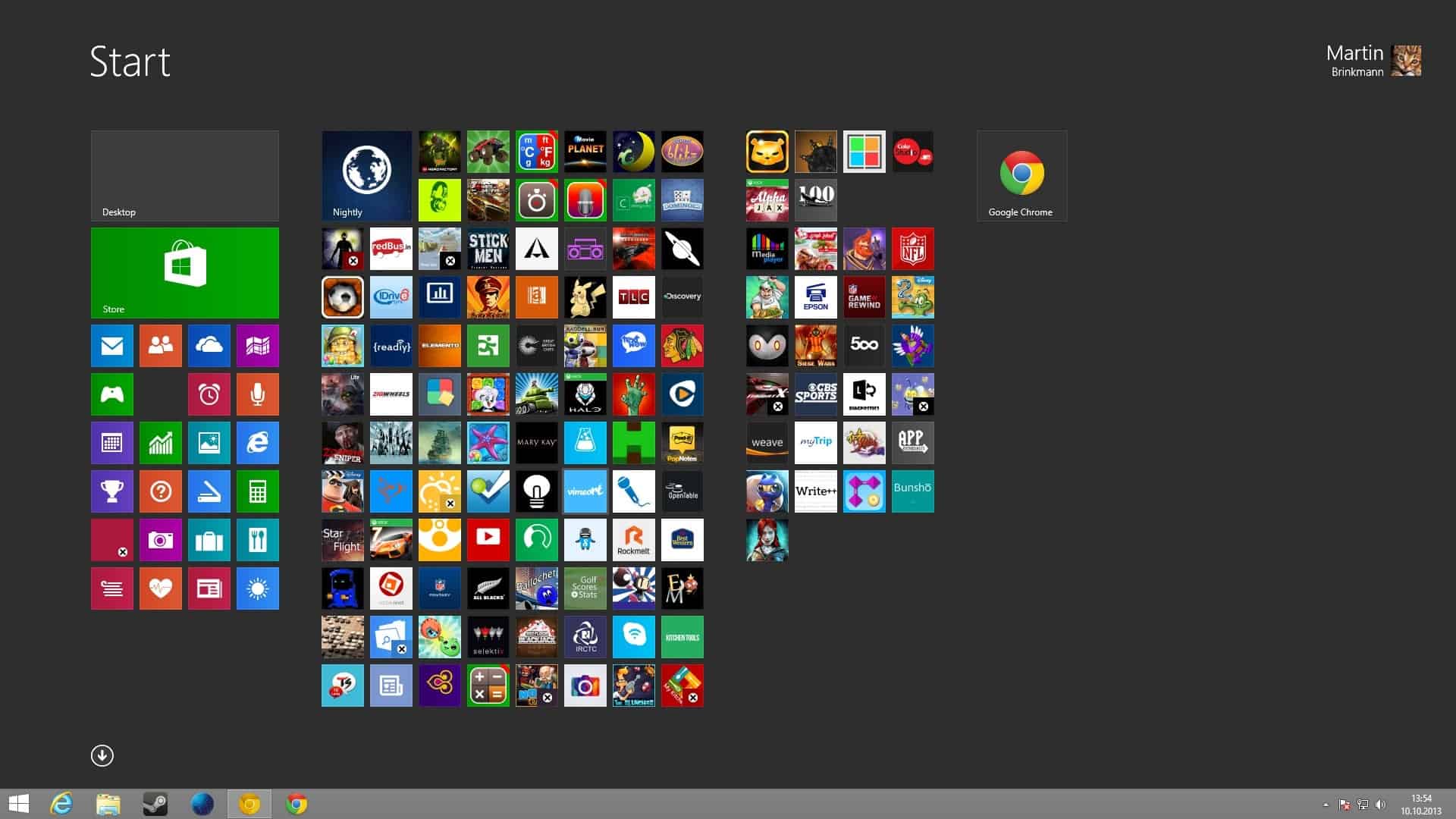
The coolest feature by far is the integration of the taskbar on the Windows 8.1 start screen. It is a simply thing but it improves the usability quite a bit. You are probably wondering what is happening when you start modern apps on the start screen. The taskbar fades away so that apps use all of the screen by default.
If you are running a multi-monitor setup, you will benefit from other features that StartIsBack+ offers. This includes a start menu button on each monitor, options to disable hot corners between monitors so that you do not open them all the time when you are moving the mouse cursor from one monitor to the other, and options to selectively disable hot corners that you do not need