Sunday, 28 April 2013

Google Earth 7 with tour guides and 3D imagery


Google Earth 7 with tour guides and 3D imagery

By  on November 1, 2012 - Tags:, 
Google released a new version of Google Earth, the company's "world exploration" software yesterday.  The new program version is already available on the official website where it can be downloaded for Windows, Mac and Linux.  The two major changes in the new version of Google Earth are tour guides and 3D imagery of select cities.
Mobile Google Earth users already know the feature as it has been added to the mobile version of the application for iOS and Android several months ago.
The tour guide feature aids you in the exploration of places of interest. You do not have to be nearby to use the feature, but it certainly can be useful if you are visiting a foreign country or city and have some spare time for sightseeing.
google earth tours
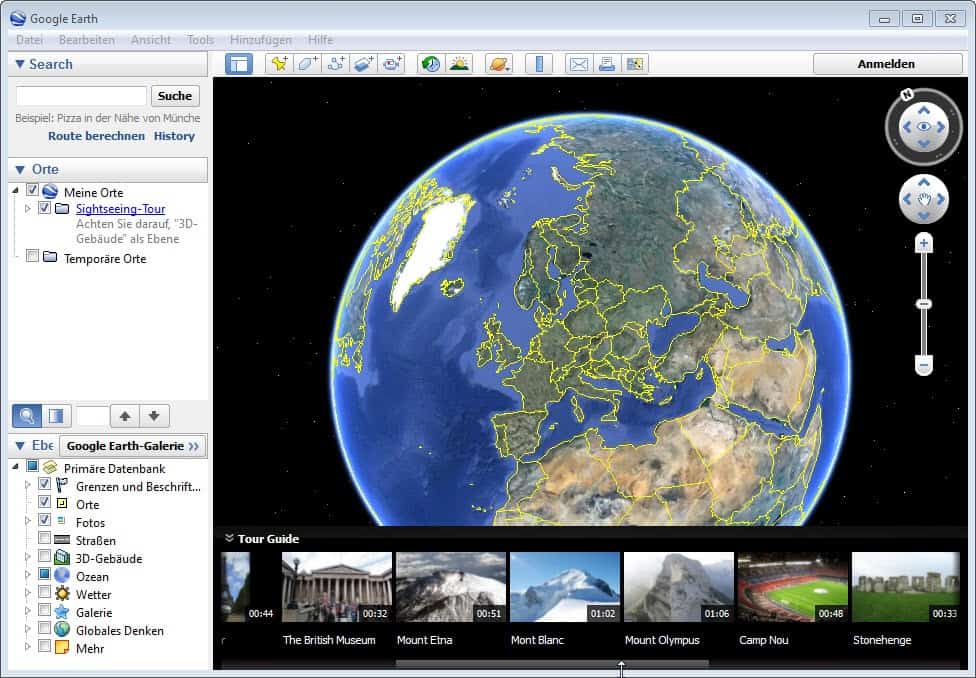
You will notice the tour guide thumbnail bar at the bottom of the main window of the Google Earth desktop application. It automatically updates the list of available tours when you change the position, either by rotation or zooming. You can alternatively use the search at the top left to zoom in on a place or location you are interested in. Each tour is visualized with a thumbnail, a play time and the name of the place, object or location.
A click on a tour zooms in on it which may take some time depending on how fast your Internet connection and processor is. The default view mode is 2d only, and you need to select the 3D buildings options on the left sidebar to display buildings in 3D if available.
google earth 3d imagery
3D imagery has already been available for the following cities and places in previous versions of Google Earth.
  • Boulder
  • Boston
  • Charlotte
  • Denver
  • Lawrence
  • Long Beach
  • Los Angeles
  • Portland
  • San Antonio
  • San Diego
  • Santa Cruz
  • Seattle
  • Tampa
  • Tuscon
  • Rome
  • San Francisco Bay Area
The new version adds the following metropolitan regions as 3D imagery:
  • Avignon
  • Austin
  • Munich
  • Phoenix
  • Mannheim
The search takes you directly to those locations on the map. The tour guides basically show locations from different angles but fail to provide you with detailed information about what you are seeing at the very moment. You will find snapshots scattered around popular places which you can hover over. Snapshots depict points of interest in the form of photos that you can take a look at from within the application.
The default Google Earth installer is a web installer that requires an Internet connection to download program files during installation. To download the Google Earth offline installer select advanced setup on the download page and uncheck the "allow Google Earth to automatically installed recommended updates" option there to download the full installer.

Namehelp: improve public DNS web performance


Namehelp: improve public DNS web performance

By  on November 1, 2012 - Tags:, 
Public DNS services have been around for several years, but they took really off in 2009 when companies such as Google started to enter the market. The Google Public DNS service is but one of the many services that Internet users can switch to if they suspect that the DNS service offered by their Internet Service Provider is lacking in one regard or the other.
There are three main reasons why users consider switching providers. Switching to a public DNS service can improve performance, privacy and security, and provide the means to bypass DNS-based Internet censorship.
Programs for various operating systems were created in the last three years to measure the performance gains of various DNS providers to find the best suitable one performance-wise.
According to a recent study by researchers from Northwestern University, public DNS services may impact the web browsing experience in a negative way. Most services use so called content distribution networks to reduce the connection time of users of the service. This is done by using servers in different locations, so that users can connect to the server nearest to their location and not one at the other end of the world.
And it is those CDN services that may cause a problem for some users. The researchers discovered that public DNS services may use bad redirects so that users do not connect to the nearest CDN but servers that are farther away from the user's location.
Namehelp, a program for Windows, Mac and Linux, was created to improve the user's web performance by up to 40%. You need to map the network adapter's (or router's) DNS to 127.0.0.1 after program installation before you can get started. Note that changing the network adapter's DNS servers requires a restart before the changes become active on the system.
public dns namehelp
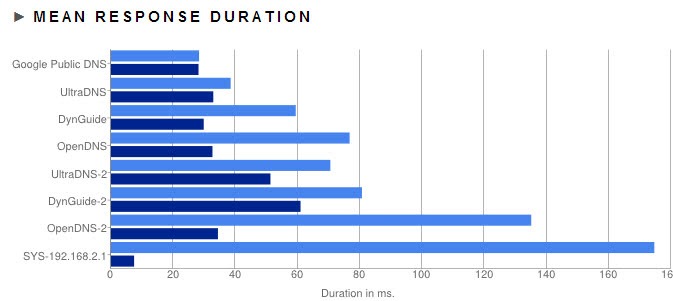
Namehelp starts to run benchmarks to determine the best DNS configuration that helps to improve web performance the most. The generation of statistics takes a while before you find information about the DNS and HTTP performance listed on the dashboard.
You can also run manual benchmarks from the dashboard to find out which public DNS server is the fastest in the test. You will end up with a recommended DNS configuration and information how much faster or slower the connection will be if you make the switch.
The program supports several popular public DNS solutions including Google Public DNS, Ultra DNS, Open DNS or DynDNS. Anonymous information about the benchmarks are submitted to the researchers. If you do not want that to happen, disable the option under Settings on the Dashboard.
It needs to be noted that Namehelp only looks at performance, and not at privacy or security related features the public DNS services offer. It is recommended to take those at least into consideration before you switch your DNS server.
Keep in mind that we are talking about milliseconds here. While this still adds up in the long run or when using applications or services that require realtime data transfers, it usually means saving a couple hundred milliseconds per connection tops, and that only if the current DNS provider is rather slow.

An EPUB Reader overview


An EPUB Reader overview

By  on November 2, 2012 - Tags:
Eletronic Publishing, short EPUB, is a free open source ebook standard used by many ebook readers like the Blackberry Playbook, Sonry Reader or Barnes &Noble Nook. The standard succeeded the Open eBook standard back in 2007, and the latest version of the format has been released in 2011 introducing several improvements over previous versions including support for MathML and XHTML5.
If the devices you use do not support the EPUB format natively, you may be interested in adding support for the format to the device. There are three major options to do just that. You can first install an application on the device that functions as a reader for EPUB files, use an online service that you can use to read EPUB books online, or convert the books that you have in EPUB format into another format supported by your device.

Web browser extensions

If you are working with a browser like Firefox or Google Chrome most of the time, you may be interested in adding support for the EPUB format to the browser you are working with to read ebooks directly online.
PUB Reader (Firefox)
epub ebook reader
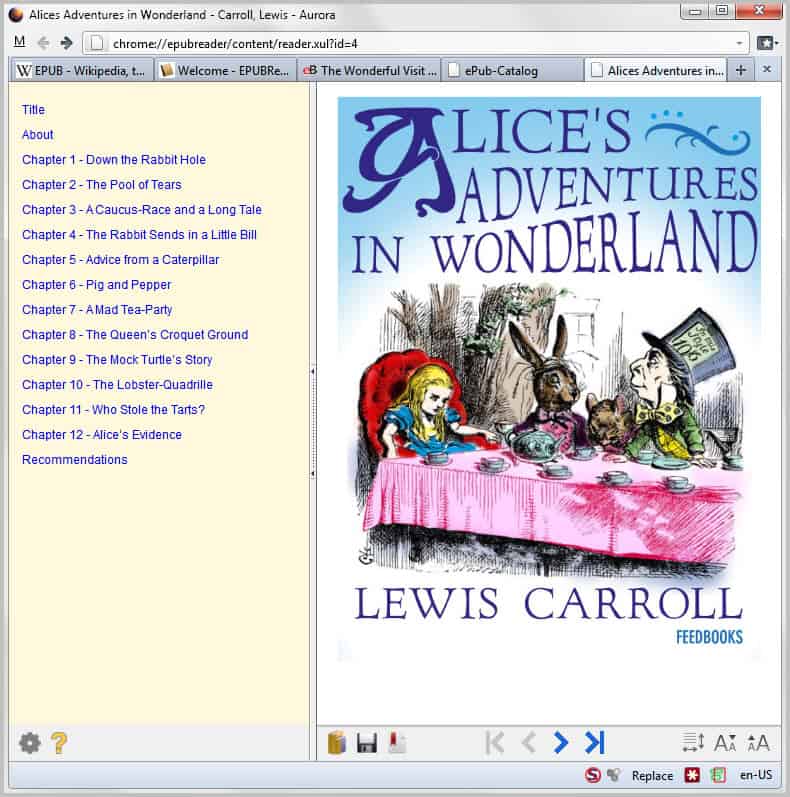
The Firefox extension EPUB Reader is without doubt one of the most popular options when it comes to reading ebooks published in the format in a web browser. It taps right into the download process of ebooks to display them in the web browser right away. The extension supports the loading of local books as well via the browser's file open dialog.
It supports keyboard shortcuts and options like zooming in or out, bookmarking and changing the appearance of the book content and the table of contents. It can't however be used to read DRM protected ebooks.
I have reviewed the EPUB Reader extension for Firefox and suggest you take a look at the in depth review if it is of interest to you.
Readium (Google Chrome)
readium
The Readium extension for the Google Chrome web browser can be used as a epub reader for local and online ebooks. It displays a library view on start listing all ebooks that you have previously added to the extension. It supports the EPUB 3 format.

Software

This section lists applications for desktop operating systems and mobile devices that let you read ebooks in epub format.
Calibre (Windows, Linux, Mac)
Main Window
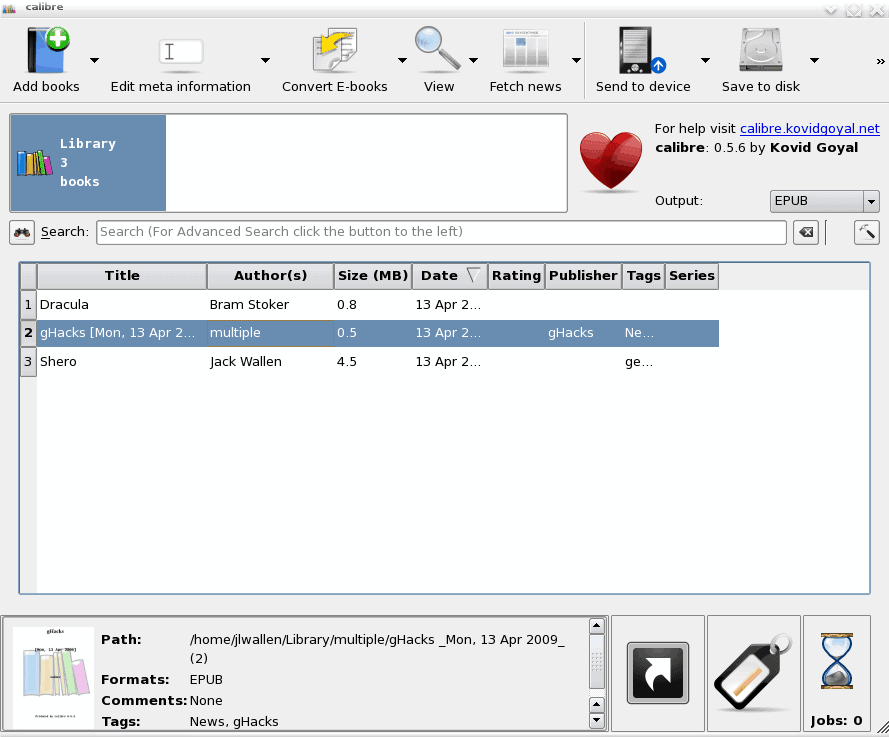
Calibre is a cross-platform ebook viewer and converter that can read and convert various document formats including epub. The application can sync contents with various ebook reader devices, download news from the web and convert it into an ebook format or help you manage your library of ebooks.
Adobe Digital Editions (Windows, Macintosh)
adobe digital editions
Adobe Digital Editions is a free ebook reader and manager for Windows and Macintosh systems. It supports EPUB and PDF/A ebook formats and a variety of other features including page annotations, libraries and moving copy-protected ebooks between devices.
Sumatra PDF (Windows)
sumatra 2.0
Sumatra PDF is a popular portable document reader for the Windows operating system. It is best know for reading pdf documents but supports other formats including EPUB, Mobi, DjVU and CBZ/CBR as well. It is also available as a plugin for various web browsers.
FBReader (Android, older versions for other systems)
fbreader
This reader for the Android operating system supports a variety of document formats including epub. You can use the built-in library feature to download ebooks to the device, or move ebooks to the Books directory manually so that they are picked up automatically for reading. The Android application is available on the Google Play store, other versions on the FBReader homepage.

EPUB Creation

The following applications and services allow you to create ebooks in EPUB format.
dotEPUB (Google Chrome, Firefox, bookmarklet)
This application allows you to convert any web page that you open in the web browser into an EPUB or Kindle ebook. It is available as a Firefox add-on and Google Chrome extension, and as a bookmarklet for other web browsers. You can read my previous dotEPUB review here.
Sigil The EPUB Editor (Windows, Mac, Linux)
ebook editor sigil
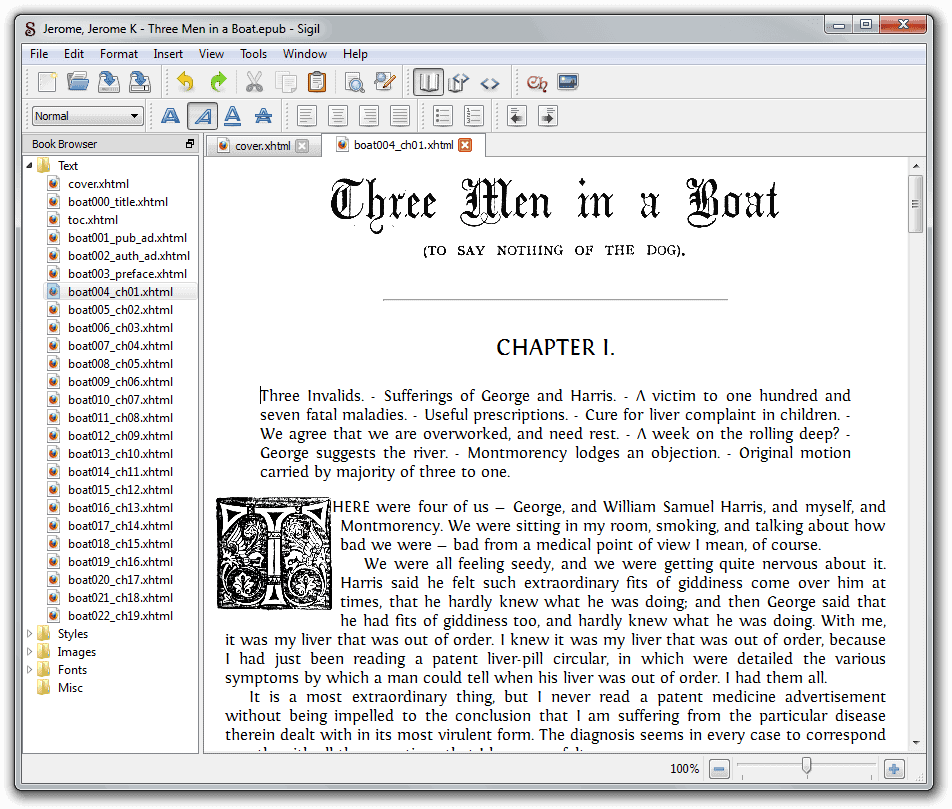
This is a multi-platform open source WYSIWYG editor that is supporting the full EPUB 2 specifications. Sigil is a versatile application that can not only be used to create new epub books but also to load, edit and read existing books.  It supports styles, regular expressions, spell checking, epub validation and more. You can read my previous review of the application by following this link:  Create Your Epub Ebooks with Sigil Ebook Editor
GrabMyBooks (Firefox)
grabmybooks
GrabMyBooks is a Firefox extension that enables you to create an epub or mobi file for your ebook reader from website or feed contents. Features include creating an ebook out of all open tabs and a basic editor that you can use to edit the book before you transfer it to a reader app. Here is theGrabMyBooks review from 2011.
2EPUB (online)
2epub
This is an online service that can turn various document input formats, including docx, pdf, txt, rtf or html into five output ebook formats of which one is EPUB. It supports up to five files per operation that can't exceed 25 Megabytes in size. To convert the documents, simply upload them from your local computer or device, or paste urls in instead if the documents are available online.

Closing Words

You are probably wondering which application or service is best suited for your needs. That's not that easy to answer as I'm not aware of your requirements. Do you read ebooks on your desktop computer or a mobile device? For desktop computers, you have the option to pick a browser extension or a program instead. Readium for Google Chrome looks pretty good, especially since it is supporting EPUB 3 which not all of the other programs do. Then again, if you only have EPUB 2 format ebooks you do not necessarily need support for version 3 just yet.
My suggestion would be to start out with a portable application like Sumatra PDF, unless you need ebook management as well which it does not offer.
I'd like to grow this article over time with the help of your suggestions. Which epub reader are you using and why? I'm particularly interested in mobile readers as there are so many to choose from.
Watch music videos on Windows 8′s sidebar


Watch music videos on Windows 8′s sidebar

By  on November 2, 2012 - Tags:
I usually head over to YouTube when I'm interested in a particular artist or song, and while I can't watch all the music videos uploaded to the video hosting site thanks to Germany's GEMA, it usually does not take long before I find the video I was looking for. If you like to watch and listen to music videos while you are working, you may be interested in a new application for Windows 8 that you can use for that very purpose.
Like most apps designed for Microsoft's new operating system, it ships with options to use the app in full screen or in the sidebar next to other applications.
Top Music Videos's start screen may look messy when you first fire up the application. You see a list of countries on the left, the music channels offered on the right, and the center area where the music videos are played in. The default selection is music from all countries and all genres. Once you start making a selection you will see a playlist open up at the bottom of the screen highlighting upcoming videos. You can use that playlist to skip videos right away.
music videos app windows 8

Hovering with the mouse cursor over the video displays a menu with an option to watch the video fullscreen, well almost, since the one ad that is displayed at the top is still displayed on the screen. The country, genre and music video playlist on the other hand are not there anymore.
You can furthermore attach the music video app to the left or right sidebar on the screen to listen to music videos while you are working with other applications or programs. To do that move the mouse to the top of the app screen until you see a hand icon. Press and hold down the left mouse button and move the window to the left or right where it is then attached to the sidebar.
music videos sidebar
Top Music Videos has a few quirks right now which limit the experience somewhat. The advertisement is not static but changes frequently which may be distracting, especially in full screen mode. You will also notice that the app won't run in the sidebar if you open the start screen, only when you are working on the desktop or running a second app on the screen.
Some music videos consist only of a static image, a cover shot for instance, likely because the videos are streamed from an online service like YouTube instead of being hand picked to avoid this. It may still be worth a shot if you like to watch and listen to music videos while working on Windows 8.
By the way, you can still make use of the service even if you do not run Windows 8 or do not want to install an application for the purpose. Just head over to the service's website to watch music videos on there. Another alternative is to head right over to YouTube and check out some of the user generated music playlists there.


Thursday, 25 April 2013

Use Click-free Browsing for Chrome if you are tired of clicking


Use Click-free Browsing for Chrome if you are tired of clicking

By  on October 31, 2012 - Tags:, 
Unless you are using a touch-enabled device, you are likely using a mouse to work on your computer. When it comes to web browsing, the mouse is used for a number of things, from activating menus and forms to scrolling or clicking on links to be taken to another destination.
Click-free Browsing is an extension for the Google Chrome browser that aims to reduce the number of clicks that you have to make when browsing the Internet.  The extension adds two features to the browser that you can make use of to reduce the clicks you make during your browsing sessions:
  • Hover over links to open them automatically
  • Use on-screen buttons to scroll or navigate without clicking
Once you have installed the extension in Chrome you will notice a set of icons on the right border of the browser next to the scrollbar on pages that you open or reload after the installation completes.
click-free browsing
To load a link on a page in the same tab simply move the mouse cursor over the icon that appears next to it once you hover the link. Hold down the Ctrl-key if you want to open it in a new tab instead.
The icons next to the scrollbar serve a different purpose. You can use them to slowly or quickly scroll up or down the page by moving the mouse cursor on them. Here you also find back and forward buttons to navigate back or forward in history, and an x icon at the very top to close the tab and the page.
The extension preferences contain options to disable specific icons on the page, which can be useful to reduce the clutter that you may experience after installation. Here you also find options to change the appearance of icons including their opacity level, a http blacklist to block the extension from displaying its icons on sites configured here, a https whitelist to enable the extension on specific https sites, and the action delays menu which defines how link it will take before an action is executed by the extension.
The extension works fine on all http websites by default but not on https sites. You can use the whitelist to change that for select https sites to make available the functionality on those sites as well.
Click-free Browsing can be quite useful in situations where clicking is either not possible at all, for instance if you are disabled, or temporarily not the best option, for instance after a hand or trigger-finger injury.

Why Google Nexus devices do not have SD card slots


Why Google Nexus devices do not have SD card slots

By  on October 31, 2012 - TAGS: None
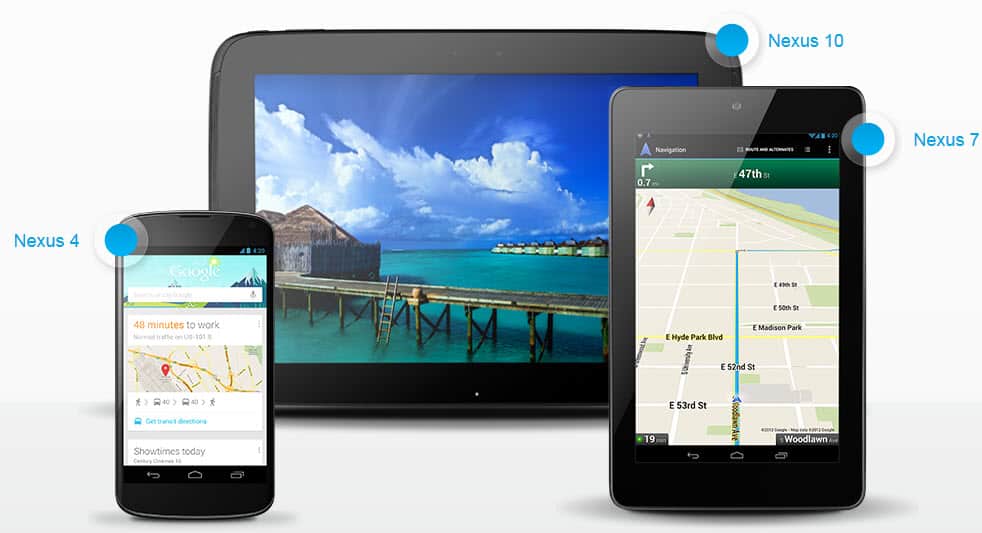
The only Google Nexus device that shipped with an SD card slot was the Nexus One which came out in January 2010. All Nexus devices afterwards shipped without SD card slot. The latest Nexus devices that Google just announced, the Nexus 4, 7 and 10 - the numbers correlate to the size of the device - all ship without SD card slot as well.
This leaves Nexus owners with two storage options: internal storage that the device ships with and cloud storage.  Matias Duarte, part of Google's Android User Experience team, recently revealed why Google made the decision to ship Nexus devices without SD card slot.
Everybody likes the idea of having an SD card, but in reality it's just confusing for users.
If you’re saving photos, videos or music, where does it go? Is it on your phone? Or on your card? Should there be a setting? Prompt everytime? What happens to the experience when you swap out the card? It’s just too complicated.
We take a different approach. Your Nexus has a fixed amount of space and your apps just seamlessly use it for you without you ever having to worry about files or volumes or any of that techy nonsense left over from the paleolithic era of computing.
With a Nexus you know exactly how much storage you get upfront and you can decide what’s the right size for you. That’s simple and good for users.
While he is certainly right that some people may find it difficulty to distinguish between SD card and internal storage, removing the option to increase local storage using SD cards means that people will either have to compromise in regards to data use on the device, especially on the lower end devices with 8 Gigabyte of internal storage, or use cloud storage instead to move part of the storage to the cloud. The latter on the other hand is only of use if a reliable Internet connection is available at times when access is needed. It won't do you any good if you are living / working / visiting a location with bad Internet coverage, low bandwidth or transfer caps.
google nexus
Depending on how cloud storage is integrated in the device, users may end up with a similar level of confusion as to where their data is stored on right now, especially if they work with multiple cloud storage services. Considering that Google Play is not available in many markets yet, at least not with all its offerings (music, movies and magazines), it is even more likely that users will pick other cloud based services to fill their needs in this regard.
A superior solution would be the automatic detection and integration of SD card contents whenever a card is inserted into a device which should get rid of the confusion Matias Duarte is speaking of.
For many users, other reasons make more sense. Shipping the device without a SD card slot not only saves some money directly but also indirectly due to license fees that apply.
How much storage space do you need on your smartphone? My Galaxy Note 2 shipped with 16 Gigabytes of storage, which I quickly filled with a couple of apps and lots of music. If it would have more storage, I'd certainly move additional audiobooks and albums on the device.

Top Windows 8 shortcuts you should know to speed up your work


Top Windows 8 shortcuts you should know to speed up your work

By  on October 29, 2012 - Tags:, 
If you have spend some time getting to know Microsoft's newest operating system Windows 8 you have without doubt noticed the major differences to previous versions of Windows. The start screen is without doubt the most prominent change with its new environment to run specially created applications. The new nature of the start screen and other features of Windows 8 have brought along new keyboard shortcuts that you should know to speed up your workflow when you use the operating system.
This guide looks at the top new Windows 8 shortcuts that you may find useful when working with the operating system. Please note that I'm concentrating on new shortcuts, not existing ones. I suggest you check out the top 20 keyboard shortcuts you should know for a broader list of shortcuts that you may find useful.


Right Click Enhancer

right click enhancer
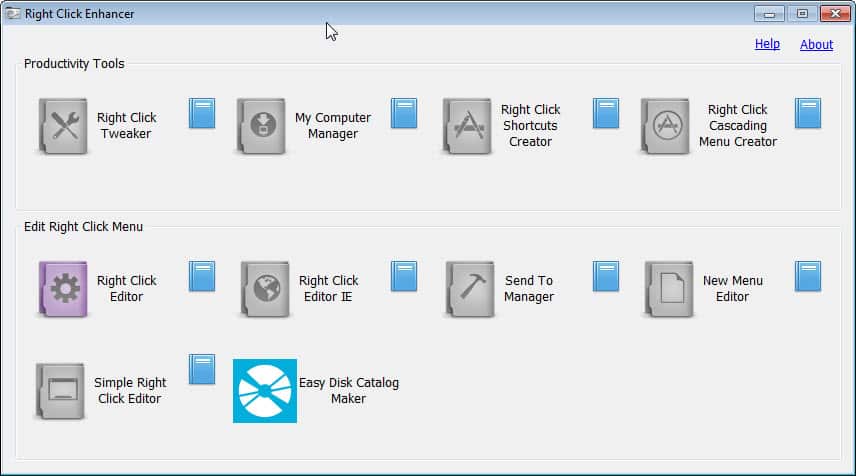
The program displays a number of options on start which may be confusing at first. There is for instance a right click editor and a simple right click editor, and it is not really clear what the difference is between the two tools. Here is a quick rundown of all tools and the functionality they make available:
  • Right Click Tweaker - This tool enables you to add new commands to the Windows Explorer context menu. From opening an administrative command prompt over printing a file list, taking ownership or copying the selected contents to the clipboard.
  • My Computer Manager - Enables you to add files or folders to the My Computer context menu.
  • Right Click Shortcuts Creator - You can use this tool to add file or folder shortcuts to the right-click context menu in Windows Explorer. All shortcuts are placed into the root folder automatically.
  • Right Click Cascading Menu Creator -  Does the same as the Right Click Shortcuts Creator, only that you place the file or folder shortcuts into subfolders which may improve visibility if you plan to add several shortcuts to the menu.
  • Right Click Editor - Displays all existing file types and their associated actions. You can add, remove or edit actions here
  • Right Click Editor IE - You can edit Internet Explorer's context menu here.
  • Send To Manager -  Add or remove devices, folders or services in the Send To folder.
  • New Menu Editor - Add or remove files that you can create when you select the New option in Windows Explorer.
  • Simple Right Click Editor - Displays context menu commands and their actions. You can use it to remove actions from the menu.
Right Click Enhancer offers an incredible set of features for Windows users who want to manage Windows Explorer context menu entries. From removing entries that are not used to optimize the context menu to adding shortcuts to often used programs or commands, it is all there and not difficult to use.