Thursday, 25 April 2013

Photo Sphere for Android 4.2 is like Microsoft Photosynth, still great


Photo Sphere for Android 4.2 is like Microsoft Photosynth, still great

By  on October 30, 2012 - Tags:
If you use the digital camera built in to your smartphone to record the moment, you have two main options to do so. You can shot single photos of a scene or record a video. What I liked so much about Microsoft Photosynth which is a program that creates a larger panoramic image from a number of photos taken from the same object. You basically take a lot of photos, preferably all in the right angle, and use the software afterwards to stitch them together to create this larger photo.
Google is brining Photosynth to Android 4.2. The company calls it Photo Sphere, but it is basically the same thing. The app displays a three dimensional room to you when you start it. You fill that room by taking photos from the scene while the application is displaying the resulting image right on the screen. The gray areas in the room indicate areas that you still need to take a photo of to complete the panorama.
You start with a single photo and go from there.
android 4.2 photo sphere
You add photos to the image, which may not look aligned and all at first, but that's only before the processing.
photo sphere
The panorama gets rendered in the end once you are finished taking the photos. The different photo angles get aligned properly in the process so that it is less likely that you can spot transitions between two photos on the panorama.
It is probably best to take a look at the app in a video as it is better suited for a demonstration. Below is Google's official demo video of the Photo Sphere feature.
Photo Spheres that you create with your phone are stored as jpeg files, with the information required to view them stored as XML data in the image itself. Images can be published on Google+ or Google Maps, and probably also other locations. This remains to be seen once Android 4.2 rolls out though.
It is interesting to note that Photo Sphere is not the first app for mobile devices of its kind. 360 Panorama for instance is available for Apple devices and on the Android store, MicrosoftPhotosynth for iOS and Windows Phone. Those are solid options if your phone does not get the upgrade to Android 4.2 any time soon - or at all.
I do like the new feature and think that it can be a great addition for Android users who like to take more than snapshots with their phones. The option to publish the results on Google Maps can be interesting for businesses, travel agencies, hotels and individuals as well.

Monday, 15 April 2013

YouTube is Testing Another New Interface


YouTube is Testing Another New Interface

By  on October 26, 2012 - Tags:
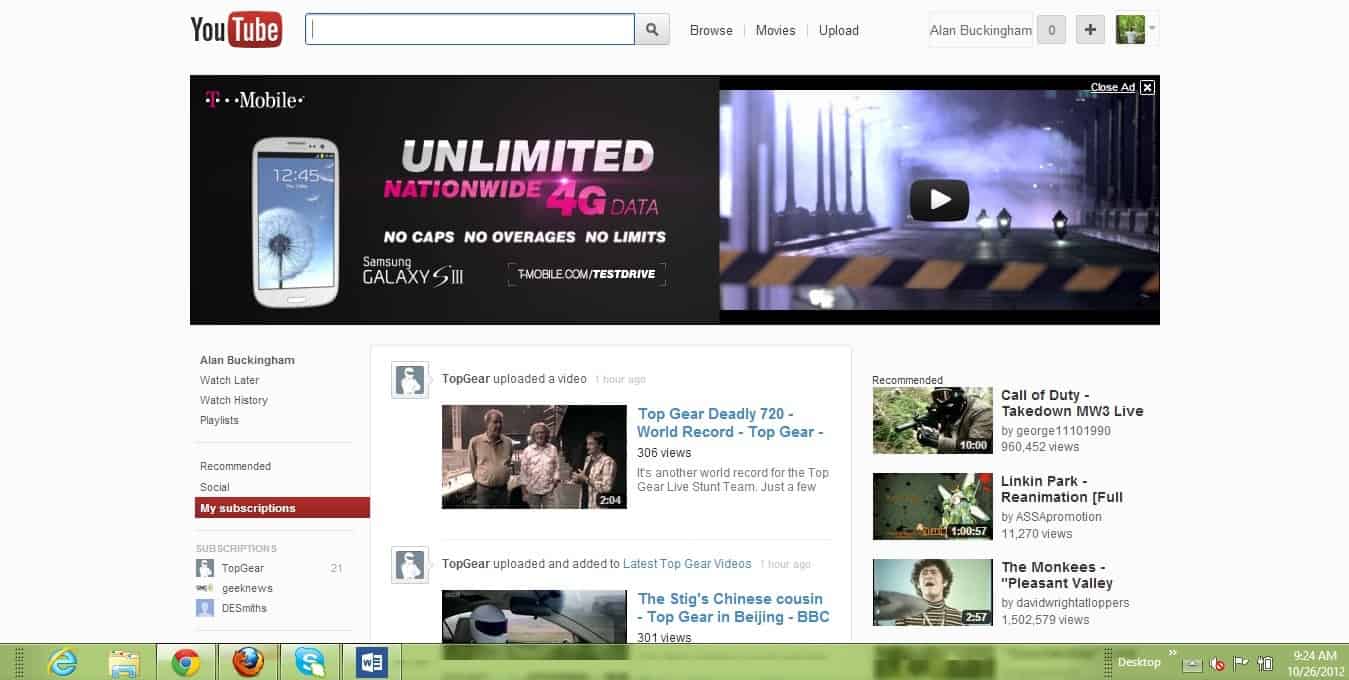
A few weeks ago we  showed you how to access the new YouTube interface that they were testing out.  If you followed the steps and began using it, then you may have realized that last week it ceased working and reverted users back to the traditional UI.  Well, now Google is at it again with yet another user interface test and there is, once again, a way for everyone to access it.
Hint: instead of following the path below to manually switch to YouTube's new experimental design, you can alternatively use the excellent YouTube Homepage Swap userscript which enables you to quickly switch between the actual design and the latest experimental design.
The steps are similar to the last time around.
1. open youtube.com in a new tab
2. load your browser's developer console:
  • Chrome - press Ctrl+Shift+J for Windows/Linux/ChromeOS or Command-Option-J for Mac
  • Firefox - press Ctrl+Shift+K for Windows/Linux or Command-Option-K for Mac
  • Opera - press Ctrl+Shift+I for Windows/Linux or Command-Option-I for Mac, then click "Console"
  • Safari - check this article
  • Internet Explorer - press F12 and select the "Console" tab.
3. paste the following code which changes a YouTube cookie:
document.cookie="VISITOR_INFO1_LIVE=jZNC3DCddAk; path=/; domain=.youtube.com";window.location.reload();
4. press Enter and close the console.
The new UI is similar to that of the last test.  You will find a new color scheme in the sidebar, more subscriptions viewable at one time, and a new default section heading  called "Now Playing".  In addition, some of the icons have been removed.  There are also new icons for the "like" and "dislike" buttons, there's a new way to show the navigation sidebar and the "more from" section was removed.  If you aren't signed into YouTube then the default home page will display popular videos from various genres like sports, entertainment and more.
youtube test ui 1
If this goes similarly to the last user interface test then it will likely work for about two weeks before disappearing suddenly.  If you want to test it then you may want to do so now before Google kills it and moves on.  Head over to YouTube and follow the steps outlined above.

Evernote Skitch: free screenshot taking app for Windows


Evernote Skitch: free screenshot taking app for Windows

By  on October 26, 2012 - Tags:, 
I have used a number of screenshot taking programs since I started blogging here on Ghacks Technology News. From using print and an image editor over MWSnap and Screenshot Captor toSnagIt which I use currently.
Evernote Skitch is a free screenshot taking app that has been available for Apple Macintosh systems for quite some time. The developers finally have ported the program over to Windows and created both a desktop program compatible with all recent versions of the Windows operating system and a Windows Store app compatible only with the Windows 8 operating system.
The program handles things different than other screenshot taking apps when it comes to the shortcuts it makes available. The first difference is that it does not map the print key to take screenshots. It instead uses keyboard shortcuts or buttons that you need to press when the application window is active to take screenshots.
  • Rectangle screenshot: Ctrl-Shift-5
  • Full screen screenshot: Ctrl-Shift-6
evernote skitch
You will notice immediately that it does not provide the same level of functionality that many Windows screenshot tools offer. Among the screenshot profiles it is missing are free hand, scrolling window or window screenshots.
Screenshots that you take are automatically displayed in the program interface where you can make basic modifications to them before they are saved on the PC. Here you can add text or arrows to the screenshot or highlight certain areas with background color. You can furthermore change the size of the screenshot before you save it to the local system.
Evernote Skitch is sufficient for the majority of screenshot taking tasks, but fails in a few areas where other - free - programs provide better functionality. What I'm missing settings-wise is an option to remap the keyboard shortcuts and to change the interface language. Actually, I could not find preferences at all in the program. An option to change the quality of the output, png, bmp and jpg are supported, is missing as well.
For now, I'd recommend MWSnap or Screenshot Captor over Evernote Skitch as the two programs offer a superior functionality to the latter. If you are on the other hand looking for an easy to use program and do not mind the shortcuts then this is certainly worth a trial run on your system.
Some users of the program have noted that it is not compatible with multi-monitor setups. Can anyone confirm that? (via Caschy)

Sunday, 14 April 2013

Windows 8: UEFI Secure Boot System for Linux


Windows 8: UEFI Secure Boot System for Linux

By  on October 12, 2012 - Tags:
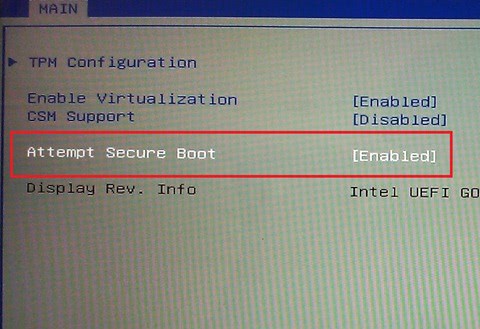
When Microsoft announced Secure Boot for Windows 8, it received lots of flak from the Linux community because of fears that secure boot would effectively shut out Linux distributions on PCs running the operating system. The biggest problem in regards to Secure Boot was that Microsoft gave OEMs the power the decide whether to include an off-switch for Secure Boot or not. Disabling Secure Boot in UEFI frees the PC from restrictions, so that operating systems that do not support Secure Boot can be installed and run on the PC.
The primary purpose of the protocol is to prevent the loading of unsigned drivers or operating system loaders. It needs to be mentioned that Secure Boot is only available on PCs that use UEFI, while PCs that use BIOS are not affected by this at all.
The Linux Foundation today announced that they have found a way to make Linux and other open source distributions work with Secure Boot.
In a nutshell, the Linux Foundation will obtain a Microsoft Key and sign a small pre-bootloader which will, in turn, chain load (without any form of signature check) a predesignated boot loader which will, in turn, boot Linux (or any other operating system).
The source code for the pre-bootloader is available in git://git.kernel.org/pub/scm/linux/kernel/git/jejb/efitools.git.
secure boot
The Linux Foundation notes that it may take a while to obtain a signature from Microsoft. Once it has been acquired, the pre-bootloader will be made available on the Linux Foundation website from where it can be downloaded freely.
The bootloader will run a "present user" test to protect the system against attacks targeting the boot process. It is not clear how this will work out, and if it will lead to certain access restrictions. The loader does not offer any security enhancements over booting Linux with UEFI Secure Boot turned off.
It is good news for PC users who want to run a dual or triple boot system on a PC with UEFI that includes Windows 8 and at least one Linux distribution or open source operating system.

The Cry Over the Loss of iGoogle and the Alternatives Available


The Cry Over the Loss of iGoogle and the Alternatives Available

By  on October 12, 2012 - TAGS: None
Back in July Google announced several services would be phased out, a process they carry out periodically.  Mostly these are web sites and functions that the vast majority of people are not using, hence the takedown.  However, one service listed caused an almost immediate cry heard round the world.  iGoogle, the popular home page site, will cease to exist in November of 2013.  While that's still some ways off, users are already scrambling to find alternatives and lobbying the Mountain View company to reconsider and save the website.
The howls of pain have not gone unnoticed by Google.  In fact, one employee, known simply as Jessica S., started a thread in the Google Web Search Help area to discuss alternatives for the disgruntled iGoogle users.
The suggestions on this thread posted by forum members are not endorsed by Google. It’s come to our attention that some folks have been wanting to discuss alternatives to iGoogle.  This is a thread exclusively for people to exchange ideas and experiences about the alternatives.  Know that any off-topic posts will deleted, so if you wish to discuss any other aspect of iGoogle, please search the forum for the most appropriate thread and make your post there. Thanks and have fun swapping ideas!
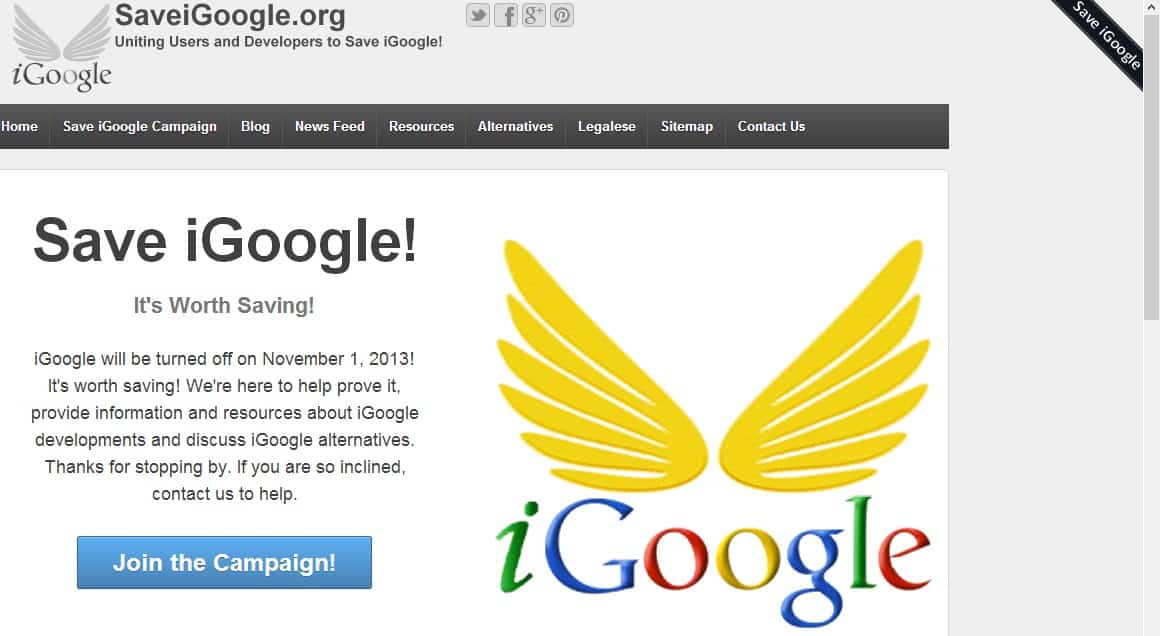
Almost immediately a link was posted to a site known as SaveiGoogle.org.  The site is not only designed to lobby the web giant to save the popular home page service, but also provides a lengthy list of alternatives in case the worst should come to pass.  The site is growing quickly and also turning into somewhat of a search engine news blog, but the primary focus remains on saving iGoogle and, to that end, they have even planned a "Save iGoogle" day for November 2nd.
save igoogle
The outcry over the loss of iGoogle seems somewhat surprising to many of us, given that we have long since moved on from the days of the home page, or web portal.  For those using Chrome, the browser doesn't even contain a home page button, although one can be added.  These days most users seem more interested in opening their browser to whatever site or tabs they left off on during their previous session.
For those looking for an alternative in case Google really follows through with their threat, there is no shortage of services available, although the number has diminished quite a bit over the years as these sites have fallen out of favor.  The Save iGoogle website gives a long list, but one of the best is probably Netvibes, which Ghacks previously has looked at.

E-Codes Free: Food Additives dictionary for Android


E-Codes Free: Food Additives dictionary for Android

By  on October 26, 2012 - Tags:
Have you ever asked yourself why food often contains food additives indicated by e-codes on the packaging? This may be especially helpful when you are in a foreign country where different food additives may be used by the food industry or when you are very careful about what food you buy and eat. It is nearly impossible to known all the e-codes unless you are a chemist or someone who really needs to be very careful about food, for instance because of allergies or illnesses.
While you could carry a small notebook or book with you at all times to look up each e-code that you find on each item that you want to buy, you could instead use an app like E-Codes for that purpose. The main benefits here are twofold. First, it is likely that you carry your phone with you anyway, so that you can get rid of the notepad or book easily. Second, the search may speed things up a lot. Instead of having to find the right page that lists information about an e-code, you can simply type in the code to get results instantly on the screen.
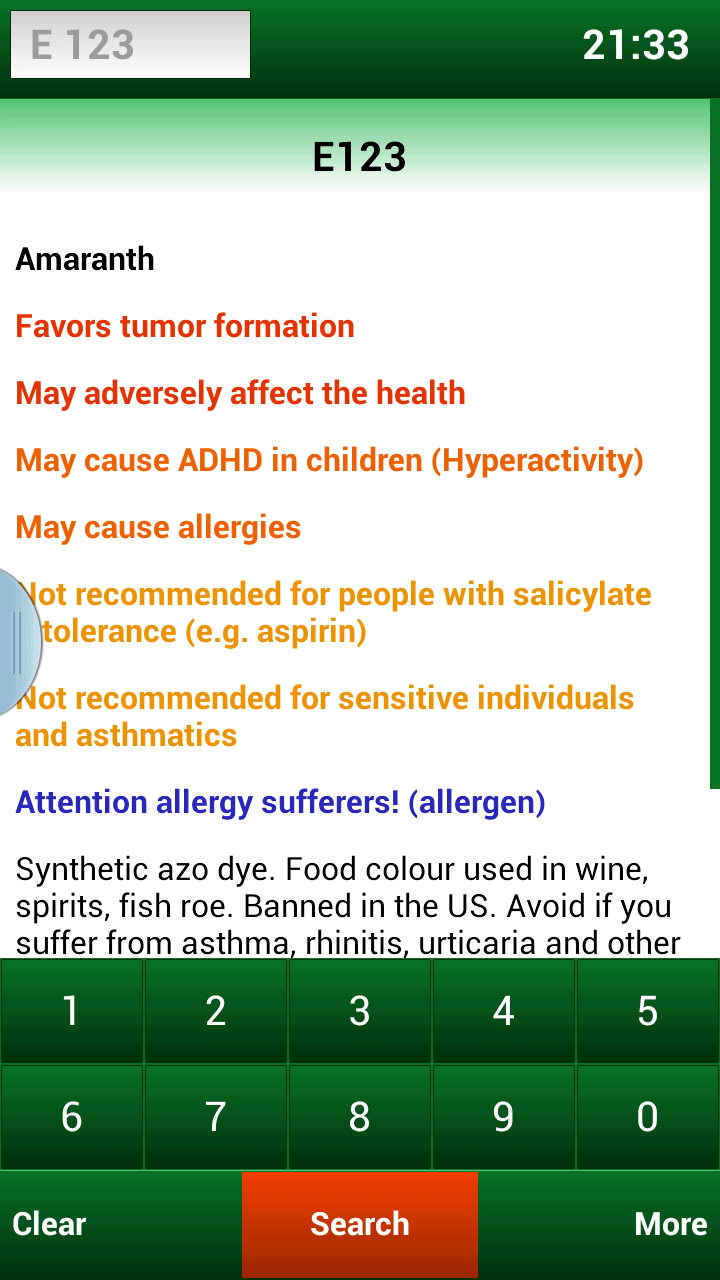
e-codes food additives
The free version of the application can be used manually only. Just type in the code that you want to look up and information about the food additive are displayed instantly on the screen. Besides the name, you also get information about risks attributed to the additive. The risks are color coded and sorted by severity from top to bottom. You also find additional information about the additive, for instance what type of food additive it is, whether it is banned in a specific country or under which circumstances you should avoid eating food that contains the ingredient.
You can alternatively search for names instead of a code if you want to find out more about a particular additive type or only have the name at hand. The program supports the three languages English, German and Polish right now and requires a restart when you change the program language. A commercial version is available which adds star ratings to each additive which may help you when you need to find information fast. Still, the free version should be sufficient for most cases.

Windows 8: difference between power down and reboot


Windows 8: difference between power down and reboot

By  on October 25, 2012 - Tags:
When you power down a PC running Windows 7, the operating system gets loaded fully again on the next start of the system. The same is true when you reboot the PC. On Windows 8, things are different which can lead to a problem that I have been facing lately. When you select to power down a machine running Windows 8, part of the operating system gets saved to the disk so that it can be loaded again on the next start. That's great most of the time as it speeds up the loading of the system, but not so great if you need the computer to load the full operating system in case you are running into an issue that requires the system to be fully loaded anew.
It is like visiting your favorite website again only to notice that the information have not been updated because it is being loaded from the browser cache instead of the web server it is hosted on.
The issue that I faced was the following: sometimes when booting into Windows 8 neither mouse nor keyboard worked immediately or after some seemingly random time of working with the system. I could not use the mouse or keyboard to reboot the PC, and the power button only powered the system down. The problem with that was that the issue did not go away since the system was not fully loaded on the next restart. There are likely other scenarios where this may be an issue.
My problem now was that I could not get the system to restart properly since I could not select the restart option when the operating system was loaded, and since Windows itself did not recognize the issue that I was facing. I also could not make use of the F8 option to display the boot menu to run system restore or other recovery options.
So how do you force the system to reboot when you can't do it when the operating system is loaded? I could not find an answer to that that works universally. I did however come up with two options that resolved the issue for me.
The first was the Mouse without Borders software that was running on the network the Windows 8 PC was connected to. While I was not able to see a mouse cursor,  I noticed that it must have been there somehow as menu items were highlighted when I started to move the mouse. I moved the mouse to the lower right corner of the screen to bring up the Charms Bar, select Power and then the reboot option.
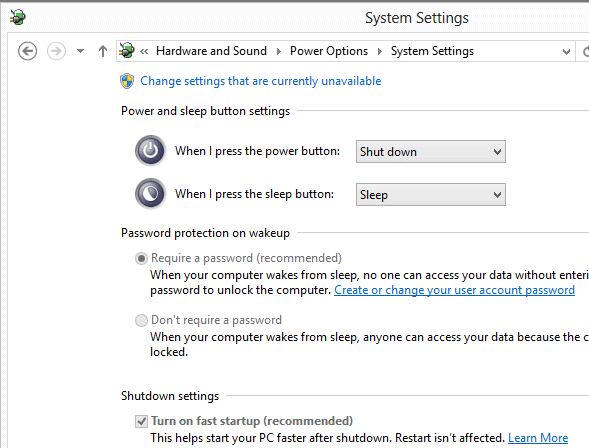
I also noticed that the reset button on the PC, if properly connected and configured, reboots the Windows 8 PC properly. You can alternatively configure Windows 8 to turn off fast startup. This is done in the Power Options control panel applet.
windows 8 fast start
The reset button works for me, but if your PC for whatever reason does not ship with one, I'd highly suggest to disable fast startup to avoid these issues. Sure, the system may start a few seconds slower when the feature is disabled, but that may be a small price to pay in the long run.
Enjoyed the article?: Then sign-up for our free newsletter or RSS feed to kick off your day with the latest technology news and tips, or share the article with your friends and contacts on Facebook, Twitter or Google+ using the icons below.