Sunday, 3 February 2013

Enable the Built-in PDF Reader in Firefox 15


Enable the Built-in PDF Reader in Firefox 15

By  on September 8, 2012 - Tags:
Mozilla recently rolled out Firefox 15, the latest version of the browser in their new rapid-release schedule.  With this new release there are quite a few new features, which have been outlined in the above linked post.  One interesting feature that bears a little more attention and some explanation is the new built-in PDF reader.
Building a PDF reader right into the browser is important for a couple of reasons – one is that it speeds up the execution of these files online, but the other is security.  Previously users have mostly plugged the Adobe PDF Reader into their browser because it’s well known and it’s also the first option that comes to mind for many.  However, the Adobe app is notorious for it’s security problems.  With the new Mozilla feature we will, hopefully, get a more stable and secure way to view these files online.
Before we get started you will need to make sure you are running Firefox 15 (or higher if you subscribe to the beta).  To do this you can simply click the “Help” option on the menu bar and choose “About Firefox”.  This will not only display the currently installed version, but also prompt you to update if you aren’t running the newest build.
Now, in the address bar, type “about:config” and hit “Enter”.  If this is the first time you have accessed these settings then you may be surprised by a pop-up message that will warn you about making any changes.  Don’t panic, just click “I’ll be careful, I promise!”
In the search bar type “pdfjs.disabled” and then right click this option.  In the context menu choose “Toggle” to change the setting from “True” to “False”. You can alternatively double-click the entry.
pdfjs.disabled
You have now enabled the the PDF reader in Firefox.  Browse to a site that has a “.PDF” extension and try it out.  We have high hopes that this will solve the previously mentioned security woes that came with Adobe and perhaps make the browsing experience a bit faster as well.

Modify the Google Bar with +You Gbar for Chrome


Modify the Google Bar with +You Gbar for Chrome

By  on September 9, 2012 - Tags:
Google’s black bar that is displayed on nearly every Google property is highly inflexible as there is no option to remove or exchange products listed in the bar. What good is a link to Google Docs if you do not use the service?
That’s probably the main reason why extensions like Big G Black Bar Sorter for Google Chrome are fairly popular in the official Chrome web store as they allow you to change the product links that are displayed in the black bar. If you prefer white instead of black, you can do that as well with the userscript Google Light Navbar.
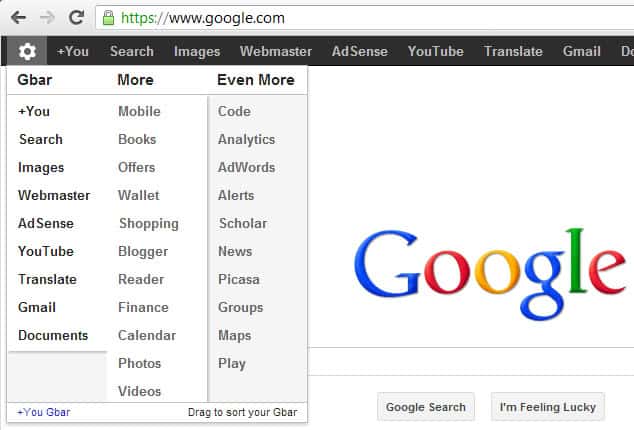
The Chrome extension +You Gbar for the Google Chrome browser adds a settings icon to Google’s black bar that you can click on to modify what is displayed to you on the screen. As you may know, Google products are either displayed directly in the black bar, under the more link, or the even more link.
modify google bar
This is reflected by the three columns that the extension displays to you. To move products around, you simply drag and drop them to a new location. If you do not use Google Plus you can move it to the even more group instead to hide it from the black bar that is always visible on Google pages.
Changes are reflected immediately on the screen so that you can adjust them if the need arises. Please note that you only see the settings icon on pages that display the Google bar. Just visit a Google property like Google Search to make the modifications.
You can theoretically use the extension to remove all product links but the more link from the Google bar. If you prefer to remove the Google bar completely, you can instead use a userscript like this to do so.
The Chrome extension can be useful for Google users who want to customize the product links of the black bar. (via Caschy)

How to ignore #hashtags on Google+


How to ignore #hashtags on Google+

By  on September 9, 2012 - Tags:, 
Users of the Google+ social networking site can add hashtags to their posts to categorize and describe posts. The search on the site supports hashtags so that searches can include one or multiple hashtags, or only hash tags to find only specific contents. To search for hashtags on Google+ simply enter #example in the search bar. This displays a list of all posts on Google+ sorted by “best of” that have been tagged with the selected tag.
There is currently no option to block certain hashtags from appearing in your news feed. This can be a frustrating experience if some people or brands that you follow post contents on Google+ that you are not interested in. Then again, the majority of people that I follow on Google+ do not seem to use #hashtags yet.
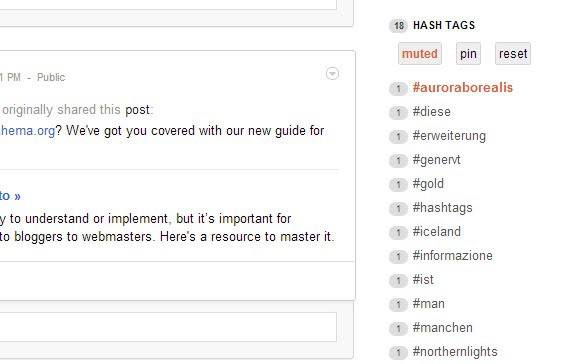
G+ Hashtags is a Google Chrome extension that you can use to ignore certain hashtags on Google so that they do not appear in your news feed. You will notice a new Hash Tags listing located on the right sidebar when you open Google Plus after installation of the extension. You need to reload the page if Google+ has already been open in a browser tab.
The extension lists the top 15 hashtags here and an option to display them all with a click on the more link. You can now hover over an hashtag to mute it, which automatically removes it from your feed regardless of the other tags that may have been used to describe it by its author.
ignore hashtags google plus
To ignore a hashtag hover over it and select mute from the options that appear. The other option that is displayed on hover is view, which opens an overlay on the same page that highlights all posts in your news feed that have been tagged with the hashtag. A click on the actual tag opens a search page displaying all public posts on Google+ that have been tagged with it.
You can reset all tags or individual tags at any time. The extension is obviously only useful if several of the Google+ users that you follow make use of them. Options are not available at this point in time: options to add words to a list that are not currently used in the stream would be a nice addition, as would be a word filter to filter out posts containing certain words or phrases even if no hash tags are used. (via Caschy)

Share the Windows 8 startpage with the classic desktop


Share the Windows 8 startpage with the classic desktop

The two interfaces that Microsoft has implemented into Windows 8 are a major change from previous versions of the operating system. Instead of just having to work with the classic desktop, users now have to cope with the newly added startpage that Microsoft is pushing and the classic desktop. While it is certainly easy to bypass the startpage using various methods and tools, like our current favorite Start8, there are other options to get used to the situation.
If you are working on a PC connected to multiple monitors, you can for instance display the startpage on one monitor and the classic desktop on the other.Another option is to snap an app or the desktop to the left or right side of the screen to make it available there.
Start Screen Modifier introduces another possibility, which may be useful for Windows 8 users who only have one computer monitor at their disposal. The program makes available the startpage interface on the desktop.
windows 8 share startpage desktop
When you run the program you have options to make the startpage available at the top or bottom of the screen. Either option displays the startpage here when you switch to it. So, pressing the Windows key will not open the startpage interface in fullscreen anymore, but at the top or bottom of the classic desktop.
The core benefit of this is that you do not switch between different interfaces all the time, but can work with both interfaces on the desktop. You can use all the features that the start page makes available to you right from here. Search is for instance working directly when you start to type. Apps that you load are however loaded in fullscreen on the system just like before, so that search and access to live tile information are without doubt the two reasons why you’d like to use the program in the first place.
Start Screen Modifier supports hotkeys which you can use to switch between the fullscreen startpage and the startpage / desktop mix.
The program lacks an option to customize the height of the startpage bar that is displayed on the classic desktop. Options to customize it and to place the startpage vertically would be really useful.
Windows 8 users can download the latest program version from this location. It is working fine under the final version of the operating system.
The program demonstrates that it is possible to merge the startpage with the traditional desktop in Windows 8, something that I wish Microsoft would have done to avoid the two interface issue. (via Into Windows)

Friday, 1 February 2013

Fix Google Chrome crashes and hangs


Fix Google Chrome crashes and hangs

By  on September 10, 2012 - TAGS: None
I have not really noticed any crashes or hangs in Google Chrome, or other web browsers for that matter, in recent time. That said, I do know of a few users who are experiencing crashes in the browser, either because they emailed me asking for help, or because I know them personally and they have mentioned issues to me.
Even though Chrome is running fine for the majority of users, it too has issues of its own. From too high memory usage to sound issues and ads in the browser to the dreaded Oops! Google Chrome could not connect to error.
Chrome users may experience crashes when they are running third party software that is not compatible with the web browser. It can be that an older version is outdated, or that even the latest version of an application is not compatible with the browser.
Software incompatibilities are the primary reason for crashes and hangs in the Chrome browser. Many of the issues can be resolved with updates, but since you do not know which program to update, it is recommended to update them all. Try a program like the software updates monitor Sumo to find out which of your programs need updating.
google chrome
Usually it is an app that is running at the time Chrome is running or an app that is somehow integrated into the browser. This can be a security software, a download manager, or a desktop app that runs all the time on the computer.
The following list highlights applications that may cause Chrome to crash or hang.
  • Internet Download Manager (IDM) – This issue is caused by outdated versions of Internet Download Manager. If you are running IDM 6.02 or earlier, you may experience crashes in the Google Chrome web browser. To resolve, update the program to the latest version (at the time of writing that is 6.12). You can alternatively disable advanced browser integration under Options > General in IDM.
  • Asus EeePC print crash – Asus EeePC owners that have Asus WebStorage installed my experience print crashes in Chrome. This too is caused by an outdated program version which you can resolve by updating Web Storage to the latest version.
  • Stopzilla (iS3 Anti-Spyware) may cause Chrome to crash. Google suggests to update the program to the latest version to see if it resolves the issue. If not, disabling or uninstalling is an option.
  • NVIDIA Network Access Manager is incompatible with Chrome. Suggested actions are to temporarily disable the software
  • The performance optimization and monitoring application NVIDIA nTune is incompatible with Google Chrome. Temporarily disabling may resolve the issue.
  • NVIDIA Desktop Explorer is also incompatible with Google Chrome. This is caused by the nvshell.dll which you may want to remove from the system. Alternatively, disable or uninstall the desktop manager.
  • ESET Nod32 Antivirus – Earlier versions of the antivirus software are incompatible. If you are running version 2.7 or earlier you may notice crashes in Chrome. Solution: update to the latest version or disable Internet monitoring.
  • Hide My IP may cause crashes in Google Chrome. Disable for the time being or check for updates to see if it resolves the crash issues.
  • Venturi Firewall can crash Chrome as well. Try updating the desktop firewall to see if it resolves the issue. If not, disabling or uninstalling may be the only option if you want to continue using Chrome.
  • WinMount, a program to compress and decompress archives and to mount archives on the system, appears to be incompatible with Chrome. You may try and update the software, or if that does not work, disable it instead.
  • PPLive, a live video streaming software, may cause Chrome to hang or crash. To resolve, update to the latest version. If issues remain, disable the integration in Chrome.
  • Folder Size
  • Profile corruption. If Chrome crashes seconds after opening, or get “Aw Snao” error messages all the time, your profile may be corrupt. Follow the instruction posted here to create a new default profile to see if it resolves the issue.
  • Other software that may crash Google Chrome: Safe Eyes Parental Control Software, ContentWatch, Microsoft Office XP Input Method Editor,Naomi Web Filter,Trusteer Rapport. Try updating first, if that does not help, disable or uninstall.
If you can’t find a solution and do not want to or can’t uninstall or disable the application causing the issue, you may want to post in the official Chrome support forum to get help with the issue.

How to protect your privacy on the Internet


How to protect your privacy on the Internet

By  on September 7, 2012 - Tags:, , 
With UK parties proposing to monitor the activities of all country residents come new fears of an 1984-esque government that with a single mouse click can find out everything there is to know about its citizens. When you look at what is openly proposed in non-totalitarian countries, and the monitoring that happens without the public knowing, you’d better be prepared to take your privacy into your own hands.
If the charter passes, UK ISPs and phone providers will be required to record information about the Internet, text (as in SMS) and email use of all British residents. While that does not include contents, it does include the visited Internet sites, and the people that UK residents have contacted via email or text messages. The data must be retained at least for a 12 month period before it can be deleted.

Protecting your privacy

Here is a set of options that you have to protect your privacy on the Internet and when using your mobile phone.


  • Privacy related browser extensions: Extensions like HTTPS Everywhere or Perspectives can improve your privacy while you are browsing the Internet.
  • Proxies: A proxy server disguises your IP when you make connections. Your ISP would for instance only see your connection to the proxy server and not the actual destination on the web that you are connecting to. This is of course only true if the proxy is configured correctly. Browser extensions like Proxilla or Go2 Proxy make the process more comfortable. You can alternatively check out this free web proxy list or use http / socks proxies instead.
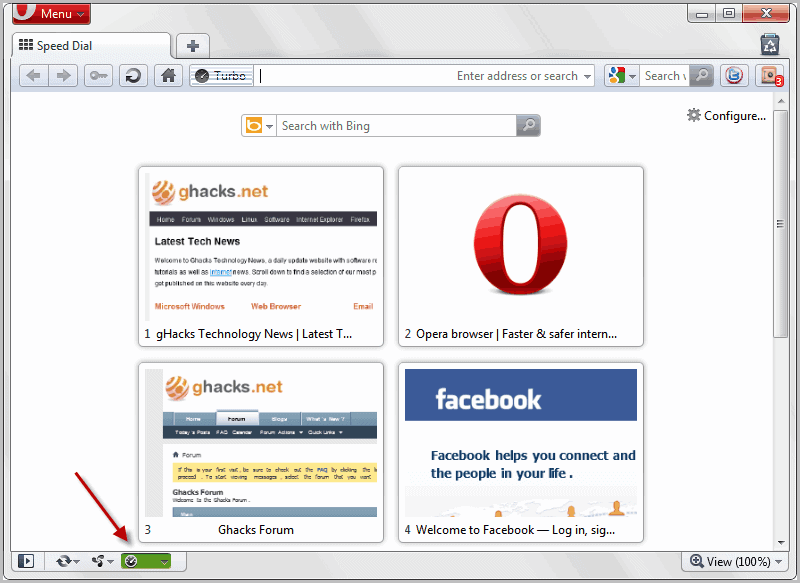
  • Opera Turbo: This is a feature of the Opera browser that redirects all of the browser’s traffic through an Opera server. It works like a proxy, but with the added benefit that traffic is compressed on the server to reduce bandwidth costs. While initially designed for low speed Internet connections and pay by traffic plans, it can be used as a proxy. And Opera Turbo is maintained by a reputable company.
opera turbo on
  • Virtual Private Networks (VPN): VPNs are without doubt the most comfortable and secure option. You establish an encrypted connection to the VPN provider so that spying is stopped in its tracks. The sites you connect to only see the IP of the VPN provider and not your own so that you can’t be monitored this way as well (unless you happen to share or leak information on the sites). VPNs come at a cost, usually between $5 to $10 per month.It is recommended to pick a VPN provider that is not operating from the country you are living in, or that has ties to the country as the provider may be obligated by law to record your traffic. Most smartphones support VPN connections as well so that this is taken care of when you sign up for a virtual private network, provided you configure your phone to connect to it.
  • Tor: Tor routes your Internet traffic through several servers that only know the server before and after them in the chain. Tor is free to use, and you can download a variety of tools and programs to use it on your devices. Tor is not only available for desktop computers, but also for Android. The downside is that you can’t use TOR that well for for activities that require lots of bandwidth.
  • Encryption / email: If you are using a VPN, then traffic to and from your email provider is automatically encrypted as well. You can alternatively encrypt your emails in Linux or in Thunderbird. Remember that the methods are only effective if all involved parties encrypt their email traffic. It does not do you anything good if you encrypt your email traffic, but a recipient in a country that is spying on its citizens is not.

Closing Words

Did I miss an option that you are making use of? Are you protecting your Internet connection? If so, how?

Share the Windows 8 startpage with the classic desktop


Share the Windows 8 startpage with the classic desktop

The two interfaces that Microsoft has implemented into Windows 8 are a major change from previous versions of the operating system. Instead of just having to work with the classic desktop, users now have to cope with the newly added startpage that Microsoft is pushing and the classic desktop. While it is certainly easy to bypass the startpage using various methods and tools, like our current favorite Start8, there are other options to get used to the situation.
If you are working on a PC connected to multiple monitors, you can for instance display the startpage on one monitor and the classic desktop on the other.Another option is to snap an app or the desktop to the left or right side of the screen to make it available there.
Start Screen Modifier introduces another possibility, which may be useful for Windows 8 users who only have one computer monitor at their disposal. The program makes available the startpage interface on the desktop.
windows 8 share startpage desktop
When you run the program you have options to make the startpage available at the top or bottom of the screen. Either option displays the startpage here when you switch to it. So, pressing the Windows key will not open the startpage interface in fullscreen anymore, but at the top or bottom of the classic desktop.
The core benefit of this is that you do not switch between different interfaces all the time, but can work with both interfaces on the desktop. You can use all the features that the start page makes available to you right from here. Search is for instance working directly when you start to type. Apps that you load are however loaded in fullscreen on the system just like before, so that search and access to live tile information are without doubt the two reasons why you’d like to use the program in the first place.
Start Screen Modifier supports hotkeys which you can use to switch between the fullscreen startpage and the startpage / desktop mix.
The program lacks an option to customize the height of the startpage bar that is displayed on the classic desktop. Options to customize it and to place the startpage vertically would be really useful.
Windows 8 users can download the latest program version from this location. It is working fine under the final version of the operating system.
The program demonstrates that it is possible to merge the startpage with the traditional desktop in Windows 8, something that I wish Microsoft would have done to avoid the two interface issue. (via Into Windows)