Tuesday, 22 January 2013

Automatically close Firefox’s find bar after inactivity


Automatically close Firefox’s find bar after inactivity

By  on August 14, 2012 - Tags:
All web browsers support a find on page feature that you can use to to search for text on a web page that you are currently on. In Firefox, you simply press Ctrl-f or F3 to open the find on page toolbar at the bottom of the browser window and start typing. Firefox will automatically highlight the first instance of the text that you have entered provided that at least one instance of it is available on the web page.
You can then cycle through all instances of the text you have been searching for with the F3 key or Shift-F3. F3 will cycle through all hits from top to bottom, while Shift-F3 reverses the direction.
What you will also notice is that the find bar will be displayed on all tabs open in the same browser window so that you either need to close it manually with a click on the close button or by closing the Firefox window.
If you perform many find on page operations on a regular basis, you may be interested in a solution that automatically closes the Firefox find bar after a set amount of inactivity. Once you have installed Hide Find Bar, you will notice that the toolbar gets closed automatically after ten seconds of inactivity. The time only counts when the bar is not active.
If you think that the default time interval is too short or too long for your requirements, you can modify it in the add-on preferences. Enter about:add-ons in the address bar of Firefox to load the Add-ons Manager window. Locate Hide Find Bar here and click on the Options button.
firefox hide find bar
Here you can change the interval, select to enable or disable the extension, and select whether you want a toolbar icon to appear in the browser’s status bar if the add-on is disabled in the options. You can use the status bar icon to enable or disable it in this case.
The extension is fully compatible with recent versions of the browser, even though it has been abandoned by its author who complained about the lengthy review process and criteria put forth by different reviewers.
Update: Damirora pointed out that you can also use / to bring up the find form, and that it will auto close after a certain time of inactivity.

How to clean a Dorifel infection on your PC


How to clean a Dorifel infection on your PC

By  on August 14, 2012 - Tags:
The Dorifel worm has hit computer systems in the Netherlands and to a lesser degree other regions of the world for the last six days or so. According to research by Emsisoft and Kaspersky, the majority of systems infected seem to be located in government, public sector and company networks. Trojan-Ransom.Win32.Dorifel (Emsisoft) or Worm.Win32.Dorifel (Kaspersky) enters the infected systems with the help of the Citadel malware which is related to the Zeus family of malicious software.
Kaspersky’s David Jacoby sees the point of entry in emails the malware is distributed with.  Dorifel itself will be copied into a directory under the user’s user folder, and launched from there. A shortcut is generated in the same directory that is added to a Registry startup key so that it is always loaded on system start. They key the malware shortcut is added to is HKCU\Software\Microsoft\Windows NT\CurrentVersion\Windows\.
Dorifel starts three background threads as soon as it is started on the system. The first scans the system for Word and Excel documents, and executable files. The second thread contacts a command server ever 30 minutes which may provide the malware with additional instructions in the near future. The third and final thread checks for the existence of a taskmgr.exe (Task Manager) process, and if it finds one, terminates itself automatically.
The thread that is scanning for documents and executables will create a copy of the original file, encrypt it and in the end delete the original document on the system. What’s interesting is that encrypted documents can still be loaded, and that the documents will still display when that happens. In the background though the malware is installed if the system is not already infected with it.
What is likely going to happen is that at one point in time users will be asked to pay money to decrypt their encrypted documents.
dorifel decrypter
Emsisoft has created a Dorifel encryption tool that you can use to decrypt files on infected systems. Just download and unpack the encryption tool to the desktop and run it from there. Once all documents have been decrypted, you can run an antivirus software that detects Citadel and Dorifel. All Kaspersky and Emsisoft programs, as well as others such as Hitman Pro do that. You can for instance use Emisoft’s Emergency Kit 2.0, a free program, to clean the system.

Monday, 21 January 2013

Facebook Stories launched


Facebook Stories launched


The idea behind Facebook Stories is simple: Some of the 950 or so million Facebook users, minus the ten percent fake accounts, must have used the site for something deeper than playing games, listening to music or posting status updates. It appears to be an attempt to prove that Facebook is more than that, and that the site can be used for life-changing extraordinary activities as well.
If you now thought that you would only see celebrities lined up on the Stories website then I have to tell you that you are wrong about that.  When you look closely, you will notice that the bulk of stories are about regular people that happen to be Facebook users. There is a story about a Facebook group from Guelph Ontario that tries to save a landmark building in the city, and one from a user who lost all of his memories after an accident who is using Facebook to piece together part of his past life. If you are particularly interested in these kind of stories, then you will feel right at home on the website.
facebook stories
Facebook obviously has its own agenda when it comes to the site, and if you think that all the posted stories make Facebook seem kinda great, then you may have found the core reason for the site’s creation. While marketing certainly has played an important role in the creation of Facebook Stories, there may be more behind the site than that.
Facebook for one zooms in on particular members of the site, or groups, and puts them into the spotlight, something that the company has not done before in large scale. This may help some of the users or groups to get the publicity they need to succeed.
Facebook plans to offer monthly features as well on the site. Each month an author will highlight books that fit the month’s theme, and a musician will make available a playlist on Spotify.
All Facebook users are invited to submit their stories to the site, as long as it includes an extraordinary way Facebook has been used. Good stories like finding your long lost dog companion after ten years on Facebook via the site’s people you know feature may then be featured on the Facebook Stories website where they are made available to a large audience.

PNG Gauntlet: compress png images without quality reduction


PNG Gauntlet: compress png images without quality reduction


When you make available images on the Internet, be it embedded on a website, in documents, or by sending images as email attachments, you and the target audience often benefit from reduced file sizes. Webmasters may benefit from a fast optimized website in several ways, from improved click through rates to less visitors who close the tab before the full website has been been loaded. It also reduced the bandwidth the site needs to deliver its contents to its visitors. Bandwidth and time are also the factors when it comes to documents, email attachments and other forms of making images available to other users.
We have covered several automated solutions in the past. From the Thunderbird extensionShrunked Image Resizer, the WordPress plugin WP-Smush It to desktop applications to optimize images for websites and other purposes.

PNG Gauntlet

PNG Gauntlet is a desktop tool for Windows and Mac – the Windows version requires the Microsoft .Net Framework 4.0 – that can reduce the size of png files without reducing the image’s quality at the same time. It combines three different tools for the purpose to create the smallest possible file size. What about other image formats? If you want, you can have them converted to the optimized png format.
The interface provides you with all the settings that you need to get started. Before you do, I’d suggest you click on Tools > Options to make sure everything is set correctly here. If you plan on working on the PC while the program compresses the images, you should consider checking the run compressors with low priority box to avoid slow downs on the system. Depending on your system, you may also, or alternatively, uncheck the preference to compress multiple files at once.
png gaunlet resize images
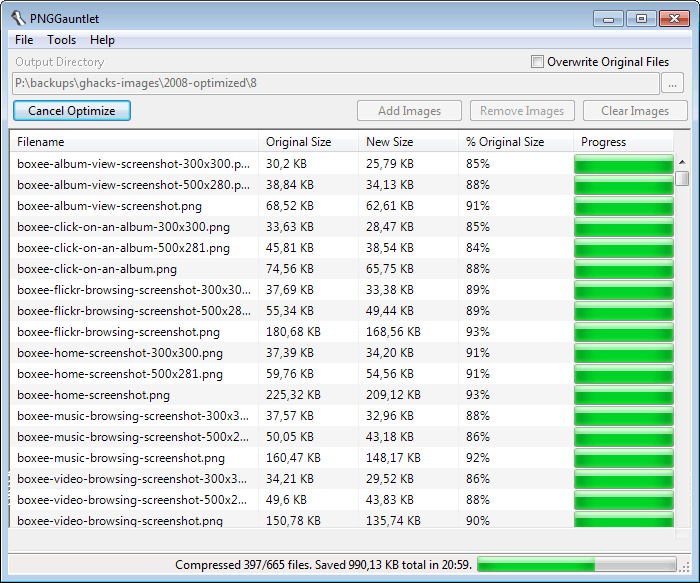
When that is out of the way you need to add an output directory where the optimized images are saved to. You can alternatively overwrite the existing files, but since you do not have an option to compare results, I’d suggest you do not the first times you use the program. Images can be dragged and dropped individually, in bulk or as folders into the interface.
A click on optimize runs the optimization of all images that you have added, and PNG Gaunlet will display the old and new image size, as well as the reduced size in percentage on the screen. In the status bar you find the total size that was saved by the operation, as well as information about the status of the operation. As you can see from the screenshot, the program is not the fastest. If you want fast, you should take a look at Riot instead which I have linked above. The program may not create the smallest file, but it does not take that long to get the images compressed and the difference is not that big that you can’t make use of it.
Still, if you want the maximum then PNG Gauntlet can get that extra percentage off of the image size.

Last Pass password manager gets two new security options


Last Pass password manager gets two new security options


I have used LastPass for quite some time before I made the switch to the KeePass password manager. While I have not regretted that move, I know of several users who are using LastPass for all their password management needs.
LastPass supports a wide variety of features that make it more than a replacement for the built-in password manager of the web browser. This includes a secure password generator, note taking, access from web browsers and the LastPass website, browser synchronization and automatic form filling.
The premium version adds mobile client support and multifactor authentication to the client usingYubikeys or USB thumb drives.
Two new security features have been added to LastPass accounts yesterday that improve the security further.  Both features are available in the account settings dialog which you can open from the LastPass vault.
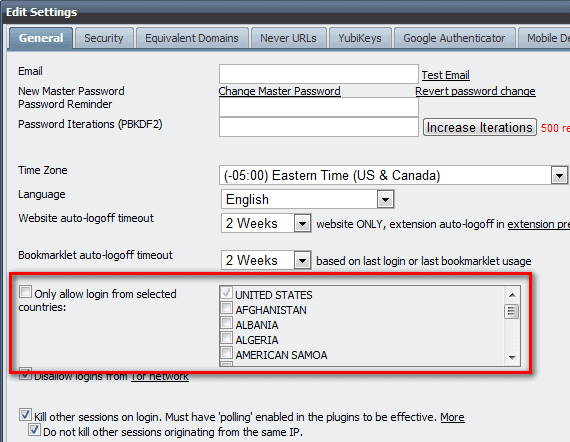
The first security feature restricts the LastPass login to countries that you select in the settings dialog.  Once you have made your selection here, and most LastPass users without doubt will only select their home country, log ins are only permitted if the IP address resolves to a location in that country.
lastpass security
If someone else steals the login and tries to log in from another country that log in will not be permitted even if the login credentials are correct. While there are options to bypass that limitation, for instance with the help of a VPN service, it may block a percentage of attackers from investigating the error message or trying to get into the account. You do however need to make sure to change the country selection before you travel to another country if you want to use LastPass there. This can be a temporary addition for a business trip, or a permanent one if you move to that country.
The second feature disables log ins from the Tor network. It is obviously not a good idea to block logins from the Tor network if you use it yourself. If you never use it however, you can block it to prevent hackers from using it when they try to access your account.

Opera 12.01 security and stability update released


Opera 12.01 security and stability update released


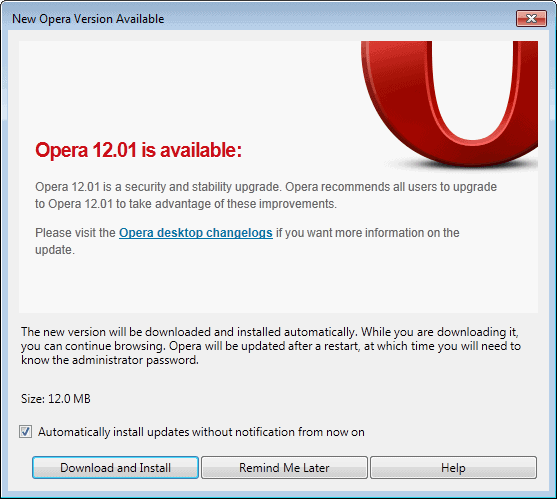
Opera Software just a few minutes ago has released an update to the desktop version of the Opera browser. Opera 12.01 is a security and stability update that falls in line with the company’s previous update cycle that iterates between larger and smaller updates.
Existing Opera 12.0 or earlier users can run an update check in the browser to download and install the latest version of it automatically. This is done with a click on the Opera button, and the selection of Help > Check for updates from the menu that opens up. The browser will eventually pick up the new version automatically to offer an automatic update without manual check.
opera 12.01
New and existing users who do not want to update the browser using the built-in updater can download the latest version from the Opera website instead. It is offered as usual for all supporting operating systems and languages.
The changelog lists several fixes and enhancements that have made their way into Opera 12.01. Here is a selection of important ones:
  • General fixes and stability improvements
  • Website thumbnail generation memory improvements
  • Fixes for issues on sites and services such as Twitter, Google Maps Labs, Yahoo Chat, Lenovo’s Shop now page and Tuenti.com.
  • Various display and scripting bug fixes
  • The browser’s address bar inline auto-completion is no longer preferring the shortest domain
  • Fixed a crash when mail databases were loaded on startup
  • Resolved a favicon display issue when too many tabs were open in the web browser
The new version on top of that patches several security vulnerabilities in Opera 12.01, of which some can allow attackers to execute code on the target system. You find additional information about the security fixes linked from the official changelog. Mac and Linux users need to navigate back to the main changelog directory to access the log for their operating systems.

Sunday, 20 January 2013

Keep Your PC Clean With Wise Disk Cleaner


Keep Your PC Clean With Wise Disk Cleaner


Some computer users say that there is not really a need to run disk cleaners like the popularCCleaner or the lesser known FixBee regularly on a system thanks to Terabyte-large hard drives. And while that may be true in some cases, it may not be true for all. Users with Solid State Drives built-in their computer for instance will have a couple hundred Gigabytes tops on that drive available, which can get filled rather quickly with games, large applications, or media.
Wise Disk Cleaner is a free program for the Windows operating system that PC users can make use of to remove unnecessary files from their system that take up disk space. The program uses a clean interface that is divided into three tabs at the top.
wise disk cleaner
The Common Cleaner tab resembles CCleaner’s functionality. It is basically a list of locations where temporary files or files that leave traces are saved in. A click on a group opens up a detailed selection list. You find the usual file locations listed here, from web browsing cookies and history information to temporary file locations that Windows uses automatically.
The list is nowhere near as comprehensive as that of CCleaner, but it covers many major locations. It needs to be mentioned that only Internet Explorer, Firefox and Google Chrome are covered by the cleaner.
The Advanced Cleaner basically searches select hard drives for temporary file types, invalid shortcuts and empty files, and offers to remove them.  It is possible to add custom file extensions here to have them included in the cleanup automatically from that moment on.
Wise Disk Cleaner offers to run these two cleanup modes manually or on schedule. It is for instance possible to run an automatic cleanup once per week.
The Slimming System options offers interesting options to cut down on the size of the Windows installation folder. Here it is possible to remove components that you may not use at all. This includes Windows Help files, language packs, or the Windows Installer Baseline Cache which usually has quite a large file size.
On a one month old installation of Windows 7, the slimming system option offered to free up 1.3 Gigabyte of disk space.
The program settings offer some interesting options. You can first add folders here that you want emptied regularly. Whatever is in that folder, will be cleaned by the program when you run it. You can furthermore add folders to the list of exclusions, so that they are not targeted by the cleaner at all, and have the program create a one-click shortcut on your system to run cleanups manually with a click on that shortcut. Non-SSD users can furthermore enable secure deletion here to make the data unrecoverable after deletion.

Closing Words

Slimming System feels like a genuine feature, especially since it usually frees up more disk space than the other cleaning options. This feature sets it apart from other cleaners that do not offer it.  Please note that you can download a portable version of the PC cleaner by clicking on the Alternate Download link on the program website.