Sunday, 20 January 2013

How To Prioritize File Downloads In uTorrent


How To Prioritize File Downloads In uTorrent


When you load a torrent with multiple files into the uTorrent Bittorrent client, you will notice that uTorrent by default will not prioritize any file in particular. While that may not be an issue most of the time, especially not if the torrent is well seeded. There are however situations where you may want to prioritize files in the program, for instance when you download a media file that you want to preview this way. You could do that by downloading the beginning of the first file right at the start, to preview the media file that way.
Another reason for downloading files in priority is if you want to have them available at the very earliest moment. Instead of download files left and right without order, you might want to download files one by one instead so that you have the complete file on your hard drive. This may be important for accessing as soon as possible, but also if you fear that the original seeder might shut down the seeding. Instead of being left with incomplete files, you would have at least some finished files on your computer.
The Bittorrent client uTorrent offers several configuration options, some automatic, some manual, that you can use to prioritize file downloads in the client.
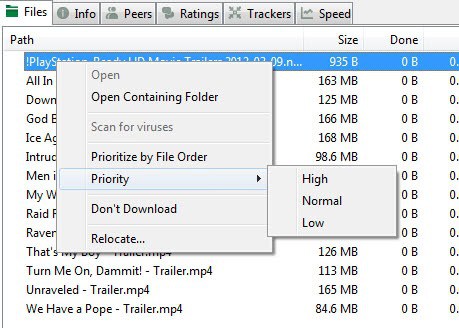
Probably the biggest option that you have at your disposal are only available manually, unfortunately. You can highlight specific files in a torrent and change their priority. The client by default supports the three priority ratings high, normal and low, which you can increase to 15 with a click on Options > Preferences > UI Settings > Use fine grained file priorities.
utorrent prioritize by file order
The second option, still manual, is the Prioritize by file order option that you see in the screenshot above. This basically prioritizes downloads based on the order of files in the file listing. If you select all files, uTorrent will try and complete the first file before it jumps to the second, then third, and so on. There is unfortunately no option to automate this setting in uTorrent.
bt.prioritize_first_last_piece
Open the preferences again, and select Advanced this time. Here you find several advanced configuration options. Locate bt.prio_first_last_piece here and set its value to true. This is an automatic setting that makes uTorrent prioritize the first and last piece of a file over everything else. Keep in mind that this does not necessarily mean that the whole file will be prioritized. It is mainly there to provide users with a way to preview media files as soon as possible.

4 Options To Find Great Free Domain Names


4 Options To Find Great Free Domain Names


So you have decided to create a new website, be it a personal blog, a website for a local sports club, or a new web service that you are about to launch. The only thing missing is a domain name, preferably short and up to the point. But no matter how hard you think about it, you do not come up with a fitting name that is still available. The following four options may aid you in finding next-to perfect domain names for your projects.

1. Expiring Domain Names

It is first necessary to distinguish between expiring and dropped domain names. Expiring domain names are still registered by someone, who has not yet paid the yearly fee to keep in possession of the domain name in question. Dropped domain names have expired already.
Lots of services are available on the Internet that auction off or sell dropped or expiring domain names. Here are a few places to get you started.
  • Namejet – Pretty big site that offers detailed search options to find the domains you are looking from. From entering a term that you want included to filtering out domain names by extension, category, and the maximum number of characters.
  • Godaddy Auctions – Auctions for sites expiring at one of the largest domain registrars in the world. Filters are pretty good, and you get additional information like traffic information or valuations.
  • Just Dropped – Offers to display results from multiple registrars, again with extensive options to filter the results listing.
Expiring domains can be a great option if all suitable domain names have been registered already. While you still need to be lucky to find a suitable one here, it offers a chance to get a great domain name for a small price. Keep in mind though that you should background check the domain name before making an offer. This includes finding out what was offered on the domain before, and whether the webmaster or a SEO agency ran campaigns that may have got it penalized in the search engines.

2. Domain Name Suggestion Tools

These online tools generate domain names based on terms that you enter. Some may let you add prefixes, suffixes or other optional terms as well.
  • DomainsBot – Enter a main word and synonyms and wait for the results listing to be populated with options. The service can search Sedo and Godaddy for you, or only display domain names that you can register right away. Additional options include selecting TLD extensions, using prefixes and suffixes, different languages, and specifying the domain length.
  • Domainit – Enter one or multiple keywords, select domain extensions, the maximum length, and whether you want the service to add its own suggestions to the resulting domain names.
  • Ubersearch – Enter a search term or phrase and get suggestions displayed on the same page. You do not have as many options as the other two services offer, but it is pretty fast and displays the availability right away on the screen.

3.  Buy a domain name

If a domain name is not available, you can try and contact the current owner to broker a deal. This obviously won’t work for domain names like Google, Amazon or Microsoft, but may work for domain names not in the possession of large organizations.
flippa
Instead of contacting the owner directly, you may also try your luck at sites where you can buy domain names and web projects directly.
  • Flippa – Probably the biggest site of its kind. On Flippa, you find domain names and web projects. Most websites on offer are sold in auctions, while you may find some listed for buy it now prices or no price at all (which means you must negotiate). The popularity of the site means that many sites will be priced on the high-side of things. Not broker-high, but still pretty high.
  • Namepros – A webmaster community forum with a strong focus on domain names. You can buy domain names here, get appraisals and domain related news.
  • Sedo – A domain market for domains without content and web projects. It is one of the most respected marketplace in this vertical, and often pretty expensive.

4. Get Personal Recommendations

You can ask friends, family and co-workers for suggestions, and while that may sometimes result in you finding a great domain name that you did not think about before, you more often than not won’t. Recommendations can however come in other forms.
  • Picky Domains – For a fee of $50 you can ask users on the site to provide you with domain name suggestions. The winning user gets part of the money, while the site operators get some of it as well. It is important to use a good description and enter keywords that you find suitable for the site. You can furthermore select domain extensions, the maximum length and other factors.
  • Squad Help A similar service with more pricing options and fees on top of it.  Service begins at $50 plus a fee of $39. You can take a look at active naming contests, which usually receive more than 100 entries.

Closing Words

Finding a suitable domain name for a new project can be a time-consuming task, especially if you want it to be perfect, and not just suitable for the project. One thing that I often do is to get a list of about five suitable free domain names, and ask close (webmaster) friends to pick their favorites. It is still up to you though to make a decision in the end.
Are you using different tolls or web services to find free domain names?
Siren is a flexible freeware file renamer for Windows


Siren is a flexible freeware file renamer for Windows


If your digital camera is only creating photos like CIMG0282.jpg you may feel the desire to rename those photos once they have been transferred to the PC for easier recognition in the future. While you could place them into properly named directories, you’d end up with the photo names being displayed in some occasions.
When it comes to renaming files you have the professional tools like Bulk Rename Utility which may seem complicated to use at first (check the screenshot), or simpler programs like ReNamer which do not offer that many features but are easier to use because of this.
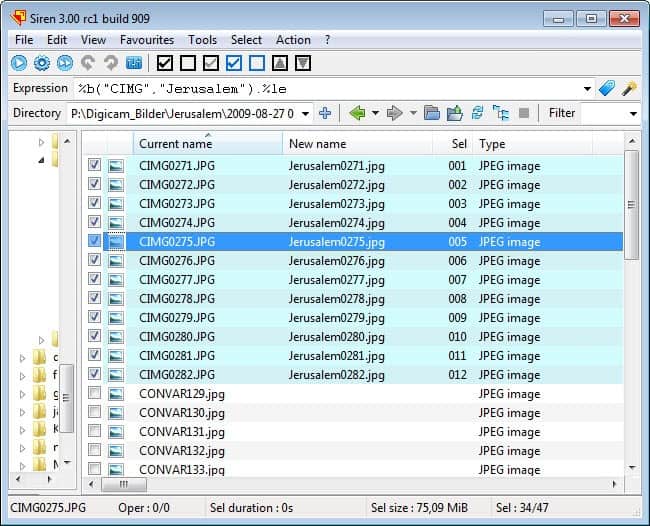
Siren sits somewhere in the middle. The developer of the file renaming software is currently working on version 3, which has recently been released as a Release Candidate. When you start the portable application after downloading and unpacking it on your system, you will see an interface that looks like the one on the screenshot below.
siren file renamer
You use the left sidebar to browser to a folder containing files that you want to rename, and make a selection here with the checkboxes. You can select all files automatically, or select files. If you want, you can also load all files residing in subdirectories into the current root folder (virtually) to process them as well.
If you know your way around the program, you can simply type a new format into the expression field and watch the new name field to check up on the new file name. Every change you make to the format is reflected here right after you hit the return key. If you are new to the program, you have two options to get used to it.
You can first click on the blue button next to the expression field to see a list of all supported variables. Next to standard variables like the file name or extension, are file specific variables like audio or video tags, Exif information when it comes to photos, and even system environment variables like the home directory.
file format variables
The second option that you have is to use the built-in wizard, the second button in that row, for a visualized process. Here you see the current and new name at the top, and renaming options below that. Everything that you select here is reflected automatically on the same page so that you can verify the new name before you close the wizard.
You have got the option to replace the existing files with the new names, or create copies of the files instead. Siren is a sophisticated file renamer for Windows that leaves little to be desired. If you are currently looking for a renamer, I suggest you try it out. It is compatible with all recent – and not so recent – versions of the Microsoft Windows operating system.

Turn Avi Videos Into Animated Gifs


Turn Avi Videos Into Animated Gifs


Animated gifs were fairly popular in the beginning days of the Internet, as webmasters tried to spruce up their websites with an assortment of blinking annoying animations. That time has passed though, and you find animated gifs on today’s Internet more on “fun-sites” or forums.
If you are a regular on one of those forums or websites, you may have considered creating your own animated gifs to publish them on those sites. Instead of using a professional solution like Photoshop or Gimp for that, you can use a much easier to handle tool like openAviToGif for that purpose. While it may not offer the versatility that some of you need, it is one of the easiest solutions when it comes to creating animated gifs from avi files.
create animated gifs
You need to download the latest version of the portable program and the codec pack that is offered on the project website. Just extract all contents into the same directory and start the program afterwards. If everything works out correctly, the program should open without error messages.
If you do not have the video available as avi, you need to convert it first into avi format. Free programs that you can use for that purpose are Miro Video Converter, meGUI or even the popularmedia player VLC.
Once you have at least one avi file you can load them into the program from the File menu or the Add files button. Both open a file browser that you can use to add your avi files. Keep in mind though that animated gifs should not be larger than a few Megabytes tops if you want to upload them to the Internet.
Before you click on the convert button, you need to define the output directory and modify parameters as you see fit. The following options are provided:
  • Select an output resolution.
  • Process every x frames
  • Delay between frames
  • Loop the animated gif infinitely
  • The number of threads
  • The maximum colors
If the video is large, you may want to process only a select amount of video frames. There is unfortunately no option to select a specific part of the video that you want turned into an animated gif. For that, I’d suggest you give the free open source video editor VirtualDub a try.

Closing Words

OpenAviToGif is a handy program if you have the tools at hand to convert and cut videos to make them work with the program.

Saturday, 19 January 2013

Google Chrome Tab Stacking


Google Chrome Tab Stacking


I’m not really sure when Google introduced the tab stacking feature in the Google Chrome browser, only that it is available at least in the Windows Chrome Canary builds right now. Tab stacking basically allows you to stack tabs on top of each other to save screen estate when the tab count reaches a level where the browser would originally resort to scrolling.
If I’m not mistaken, it was Opera that introduced tab stacks in version 11 before any other browser. I personally think that all major browsers will eventually introduce a tab stacking feature eventually as it offers a great way of saving screen estate in the tab bar if multiple pages on the same domain name are open in the Internet browser.
Back to Google Chrome and the browser’s tab stacking implementation. The feature is currently only available via the chrome://flags list of experimental features. Just load chrome://flags/ in the browser’s address bar, hit F3 and enter stacked tabs in the on-page search form to find the parameter immediately on the page.
It reads: Stacked Tabs. Tabs never shrink, instead they stack on top of each other when there is not enough space.
google chrome tab stacking
Click on the Enable link and restart the browser to enable tab stacking in Google Chrome. If you have tried Opera’s tab stacking functionality before, you will notice that Chrome’s differs in core aspects.
In Opera, you simply drag and drop tabs on each other to create a stack. This stack is then visualized with an arrow on the right side of the stack that is pointing away from it. A click on the arrow or a double-click on the active tab displays all tabs of that stack in the tabbar.
opera stacked tabs
In Google Chrome, the tab stacking feature is automatic. When there is not enough room, pages are stacked on top of each other. The method is confusing at first, as the original tab and the newly opened tab are displayed next to each other first, and only added to the stack once you click on an unrelated tab.
chrome stacked tabs
Another difference is that you can’t drag and drop tabs on top of each other in Chrome.
To paraphrase: Opera supports manual tab stacking while Google Chrome only the automatic creation of tab stacks. It needs to be noted at this point that the Chrome implementation is experimental right now, and that the Chrome devs may make changes to the feature in the future.

Office 15 with PDF Support


Office 15 with PDF Support


Microsoft is not only working on a new version of its Windows operating system, but also on Office 15, the next installment of the popular Office suite of programs. Back in January of 2012, the Office team reached an important development milestone, releasing a technical preview version of Office 15 to a select group of customers, and the promise that a public beta will be released in the summer of 2012. The final version of Office 15 is expected to be released in the beginning of 2013.
Office 15 will be available as a PC productivity suite, but also as Office 365 as a (paid) online service,  with limited functionality as Office Web Apps on SkyDrive or SharePoint, on Windows 8 ARM systems natively, and as an Office server version.
Office 15 may not be the official name of the new Office version when it is released.  If the past is anything to go by, the new Office suite will be named Office 2013 if released in that year, or Office 2012 if Microsoft manages to release the product this year.
Paul Thurott has posted some of his findings in regards to the new Office installment, and while some do not really sound that exciting, others could really improve things further.
Probably one of the biggest addition is pdf support in Word. This basically means that pdf documents can be loaded into Word to be read in the program. This feature should not be as controversial as the native Flash support for Microsoft’s upcoming browser Internet Explorer 10. It is too early though to comment on the rendering quality and loading time of pdf documents in Microsoft Word.
Microsoft Office 15 will also support the Open Document Format ODF 1.2 standard that was approved back in October of 2011.
According to Paul, light changes are coming to other Office products as well. PowerPoint will for instance default to the 16:9 format with options to fall back to 4:3, and offer better multi-monitor support, while Outlook will come with a new Peeks feature to quickly view information without leaving the current view, better Hotmail email integration and integration of the Social Connector plugin for Outlook 2010.
Will it be enough to get Office 2010 users to upgrade to Office 15 when it comes out? Paul does not think so, as there are not enough changes to justify it just yet. Office 2003 or 2007 users on the other hand may benefit from the upgrade.

Test if your system is infected with Flamer, The latest threat on the Internet


Test if your system is infected with Flamer, The latest threat on the Internet


You have probably already heard about Flamer, Flame or Flamy, as some antivirus companies call the malware. Flamer was only recently discovered, despite indicators that it has been spread on targeted systems at least since 2010. This alone highlights the danger of the tool, but that is not the only reason why some security companies call it the most sophisticated threat encountered on the Internet up to day.
Even if some experts disagree, it is definitely one of the most complex ones. If you compare the size of Flamer with Stuxnet, a related threat, you will notice that all of Flamer’s modules have a size of about 20 Megabytes, while Stuxnet, which tool experts months to analyze, had only 500K of code. Not all of the 20 Megabytes are malware code on the other hand.
Kaspersky’s Questions and Answers offers information about Flame, including how the malware spreads and infects computer systems. According to Kaspersky, Flame has two modules for infecting systems via USB sticks, but also the ability to replicate through local networks.
Flame has also only been identified on PC systems in several middle-eastern states including Iran, Israel, Palestine, Sudan, Syria, Lebanon, Saudi Arabia and Egypt. While it does not mean that PC systems in other countries are safe, it is highly probably that the malware has been designed for specific targets in the geographic region.
BitDefender has create a removal tool for the trojan that is detecting and removing Trojan.Flamer.A/B (that is how Bitdefender calls the malware). All you need to do is download the 32-bit or 64-bit version of the program from the BitDefender website, and run it afterwards on your system.
flamer removal tool
Just click the start scan button and wait for the scan to finish. The program is portable, and seems to automatically switch the interface language based on computer settings (excuse the German in the screenshot). It is definitely a good idea to run the tool once to make sure your computer is not infected by the malware. While unlikely, it is better to be safe than sorry. This is especially true if you are living in the middle eastern region.